

We have an honest review policy, but this page contains affiliate links. If you buy through these, we may earn a commission. This helps fund our research at no cost to you.
In this Shopify vs Squarespace comparison, I test two of the best-known website builders on the market — and help you decide which one is right for your business.
First up, my quick verdict — and then a much deeper dive into both platforms.
Quick verdict
If your goal is to build a fully-featured online store, Shopify wins — hands down. It’s designed from the ground up for ecommerce, giving you access to really sophisticated selling tools that comprehensively beat Squarespace’s equivalents. When it comes to automatic tax calculation, point-of-sale functionality, extensive reporting, and the ability to handle large product inventories, Shopify does everything better than Squarespace. Its multi-currency and multilingual features are considerably better than Squarespace’s too — and make the platform a much better choice for businesses that want to scale or sell internationally.
That said, if your ecommerce needs are simple, and particularly if content creation is a big part of what you do, Squarespace can be the better fit. Its beautiful templates, intuitive design tools, and excellent image-handling capabilities make it perfect for creative professionals and small businesses who need a user-friendly website builder, are happy to sell in one currency, and don’t have particularly complex tax requirements.
Try Shopify and Squarespace yourself
We strongly recommend that you try both platforms out yourself — this is always the best way to establish which one is right for you.
I’ll start my full comparison with a look at how the two platforms have quite different histories — and why this matters.
Shopify and Squarespace: two different histories
At first glance, Shopify and Squarespace look like similar tools. They let you create a website and sell products, even if you don’t have any design or coding skills.
But they have different histories — and started life with different purposes. Squarespace was initially created as a solution for building and maintaining content–based websites, while Shopify was specifically designed as a solution for making an online store.

But with the addition of ecommerce to Squarespace’s feature set, and an increase in the number of content-creation tools available for Shopify, the two platforms have become a lot more similar — and these days, you can technically use either to create a content-driven website OR sell products online.

But which one is better for your business? Answering this question starts, helpfully, with another one…
Are you trying to build a ‘website’ or an online store?
When deciding between Squarespace and Shopify, the first question you need to ask yourself is this: what am I trying to build, a website or an online store?
Of course, an online store is technically a website too, but in this context, by ‘website’ I’m talking about an online presence that prioritizes conveying information — for example, a blog, a news site, a brochure site, a magazine, a photography portfolio, etc.
By ‘online store,’ I mean something where selling products is the primary goal.
Let’s take a look at the website-building side of things first.
Building a content-driven website
If your focus is on building an informative website, then design features and content management tools are going to be the priority — and it’s fair to say that Squarespace beats Shopify on both.
Squarespace’s templates are excellent; its content management system (CMS) is intuitive and easy to use; its photo editing and displaying tools are superb; and its blogging features are, on the whole, very strong.
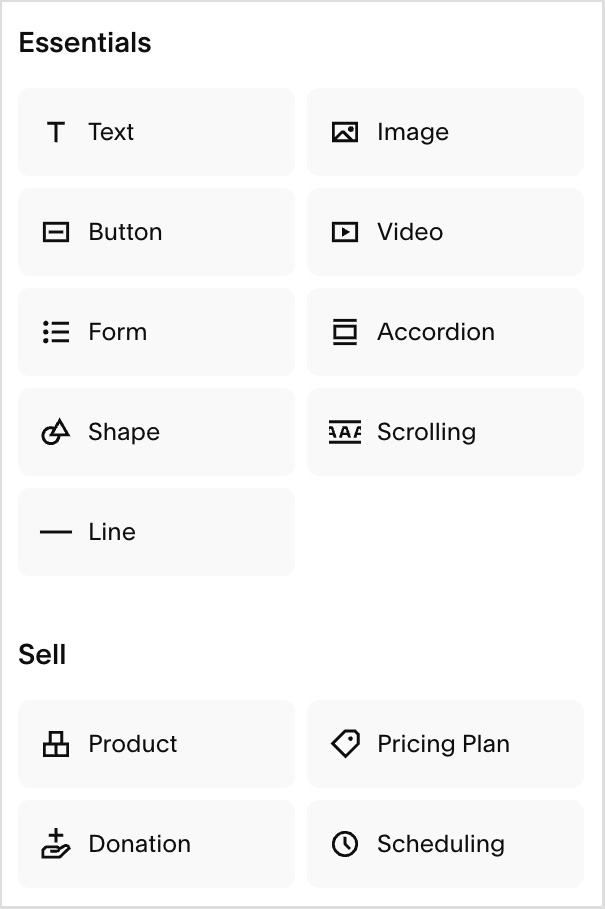
However, what you have to bear in mind with Squarespace is that it takes a fairly strict ‘walled garden’ approach to website building.
By this, I mean that it’s quite a ‘closed-off’ system — integrating third-party apps is not always straightforward and, unlike Shopify, Squarespace doesn’t give you full access to your site’s code.
Despite this, many users will find Squarespace a very good website builder for creating a content-driven site, because:
- it’s extremely easy to use
- its templates are well designed
- changes to colors and typefaces are easy to make
- the walled garden approach, despite its drawbacks, means that the platform is reliable and you won’t really have to worry about site maintenance.
The bottom line is that, used well, Squarespace can let you create a professional-looking site very quickly, and it gives you a lot of nice ways to display content — especially blog posts and images.
Now, although Shopify has traditionally been weaker in this area, over the past couple of years it’s been catching up. This is due to the rollout of an improved theme format and a new drag-and-drop editor (more on which shortly).
However, as things stand, Squarespace still remains the better option for creating content-driven sites.
But what about building online stores?
Building an online store
As you might expect, when it comes to the ecommerce features of both products, Shopify’s heritage as a dedicated online store builder means that its selling tools are considerably more developed than Squarespace’s.
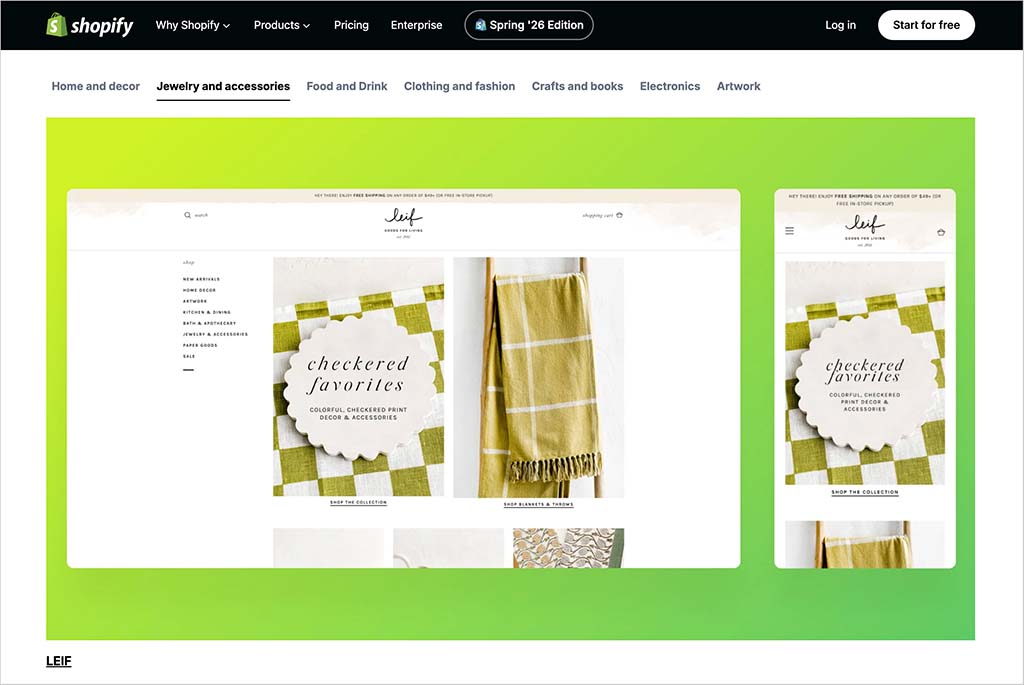
Unlike Squarespace, Shopify offers:
- the option to take payments in multiple currencies
- extensive dropshipping options
- integrations with a huge range of third-party apps (around 21,000) that extend the functionality of your store significantly
- more sophisticated inventory management options
- more advanced point-of-sale features (these allow you to sell goods in a physical location using your online store to process payments and manage inventory)
- more comprehensive tax calculation functionality
- a much wider range of payment gateway options.
I’ll go through all the above in depth in just a moment.
But first, let’s take a quick look at pricing, because how much ecommerce functionality you get with both Squarespace and Shopify depends entirely on how much you’re prepared to pay.
Pricing plans
Key differences between Squarespace plans
Squarespace provides four monthly pricing plans:
- Basic — $25 per month
- Core — $39 per month
- Plus — $65 per month
- Advanced — $139 per month
You can also make use of a two-week free trial (with extensions to this available upon request).
Now, significant discounts for all of the above plans can be accessed if you purchase one on an annual basis. When you do, the above four plans work out at $19, 29, $49 and $99 per month respectively.

There’s also a ‘Squarespace Premium’ plan available, which is aimed at more enterprise users. This plan provides additional levels of support with design, SEO and security; pricing for it is negotiable based on requirements.

In terms of the key differences between the main Squarespace pricing plans, the key things to watch out for are as follows:
- The ‘Basic’ plan doesn’t let you customize your site with code (HTML, CSS and JavaScript).
- You will pay 2% transaction fees on sales of products generated using the ‘Basic’ plan (in addition to any credit card processing fees).
- To avail of several important ecommerce features you will need to be on a ‘Core’ plan or higher. These include the option to access ecommerce analytics, display products in Google Shopping, provide real-time shipping quotations and use Squarespace’s API.
- You get a year’s free Google Workspace account on the ‘Core’ plans and higher (for one user only).
- You can only use the Facebook pixel and Facebook dynamic ads on the ‘Core’ plan or higher.
- If you pay upfront for an annual term on any plan, you get a free custom domain (i.e., yoursitename.com).
- The ‘Core,’ ‘Plus’ and ‘Advanced’ plans come with more sophisticated tools for creating pop-up messages and announcement bars.
Key differences between Shopify plans
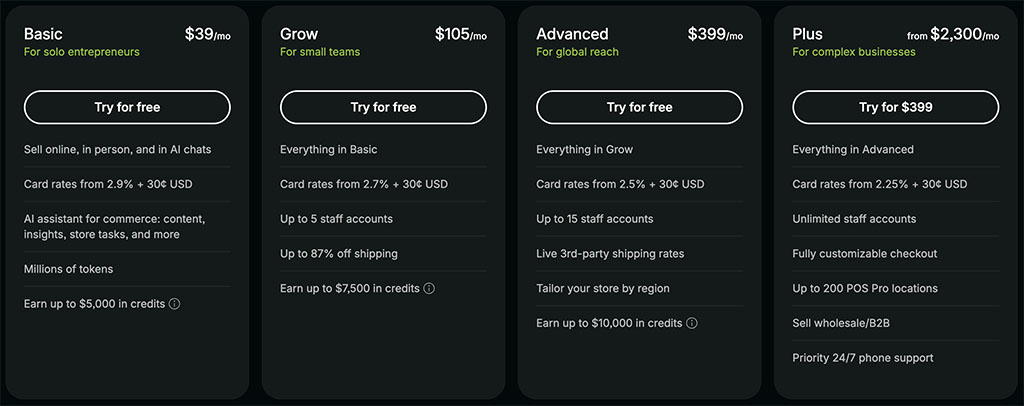
Shopify offers five monthly pricing plans:
- Shopify Starter — $5 per month
- Shopify Basic — $39 per month
- Shopify Grow — $105 per month
- Shopify Advanced — $399 per month
- Shopify Plus — custom pricing based on requirements (with fees starting at around $2,300 per month).
As with Squarespace, a free trial for Shopify is available. However, this is very different in nature to the Squarespace one, in that it lasts just 3 days, rather than 14.
However, Shopify is currently trialling a system where you pay $1/mo for three months’ access to Shopify. This effectively gives you over 90 days to build and use your store, for a minimal fee.
You can also save 25% on your Shopify plan by paying annually upfront, with the exact discount depending on the plan you choose.
The key differences to watch out for between Shopify plans are as follows:
- The ‘Shopify Starter’ plan doesn’t let you build a fully-editable, standalone online store. Instead, it allows you to create a store containing basic product pages, accept payments in physical locations via a card reader (i.e., at ‘point of sale’), embed products on existing websites and sell on social media services / messaging apps.
- How many users you can have on your account varies considerably by plan.
- Like the Squarespace Premium plan, the ‘Shopify Plus’ plan is focused on corporate users — with pricing at $2,300 per month (for a three-year term) or $2,500 (for a one-year commitment). On this plan, you can run up to 10 stores and access advanced security, API and fulfillment features, along with dedicated account management.
- Multicurrency features are considerably better on the ‘Advanced’ and ‘Shopify Plus’ plans than the others.
Point-of-sale (POS) functionality — which lets you use Shopify to sell not just online but in physical locations too — is included on all Shopify plans.
However, to access advanced POS features, you’ll need to pay an additional fee of $89 per month, per location (for the ‘Shopify Retail’ add-on).
The extra features that this unlocks include multi-location in-person selling, the ability to work with an unlimited number of staff, buy-and-collect options and more.
Have you seen our Shopify vs Squarespace video comparison?
Transaction fees and credit card fees
On top of the standard pricing plans, there are transaction fees and credit card fees to consider.
Transaction fees are a percentage fee of your sales charged by your ecommerce platform.
Credit card fees are a percentage fee of your sales charged by the company you choose to process your credit card payments, otherwise known as a ‘payment gateway.’
With Shopify, you have the choice of either using Shopify Payments — Shopify’s built-in payment processor — or a third-party payment gateway.

If you use Shopify Payments, you’ll avoid transaction fees entirely on all plans except the ‘Starter’ one (which applies a rather high 5% fee to all transactions).
You will still be charged credit card fees when using Shopify Payments, however. These vary by country and plan, but in the USA you’re charged a processing fee of between 2.5% and 2.9% on every sale made through your online store.
If you use a third-party payment gateway to process your credit card transactions, you’ll have to pay Shopify an additional percentage of the transaction. On the ‘Basic’ plan or higher, this fee will be 0.2% to 2%, depending on plan; the ‘Starter’ plan involves a 5% transaction fee.
📚 Related resource: Shopify Starter vs Basic
One thing to watch out for with regard to Shopify Payments is that you can only use it if you are selling from certain countries (40 countries are supported, including most of the EU countries along with the US, UK, Australia, Hong Kong SAR and Japan).
Shopify users who are not based in a supported country will have to use a different payment gateway — but the good news is that 100+ external gateways integrate with Shopify.
With Squarespace, transaction fees depend on what you are selling.
If you’re selling physical products or ‘one-off’ downloads, transaction fees are only applied if you’re on a Squarespace ‘Basic’ plan, and the rate is 2%. (On the other plans, no transaction fees are applied when you make these sort of sales).
With more ‘complex’ digital products — online courses, memberships, video on demand etc — transaction fees depend on your plan:
- Basic — 7% transaction fee
- Core — 5% transaction fee
- Plus — 1% transaction fee
- Advanced — 0% transaction fee
In terms of the credit card fees for Squarespace, the rate is determined by your chosen payment gateway — Squarespace Payments, Stripe or PayPal (the three options provided by Squarespace for processing credit cards).
When using Squarespace’s own payment gateway, Squarespace Payments, US users are charged between 2.5% +30c and 2.9% + 30c per sale, depending on your plan.
And speaking of payment gateways…
Payment processing
Shopify can be used almost anywhere and in most currencies, because it allows you to use over 100 ‘payment gateways’ (software that processes credit card transactions).
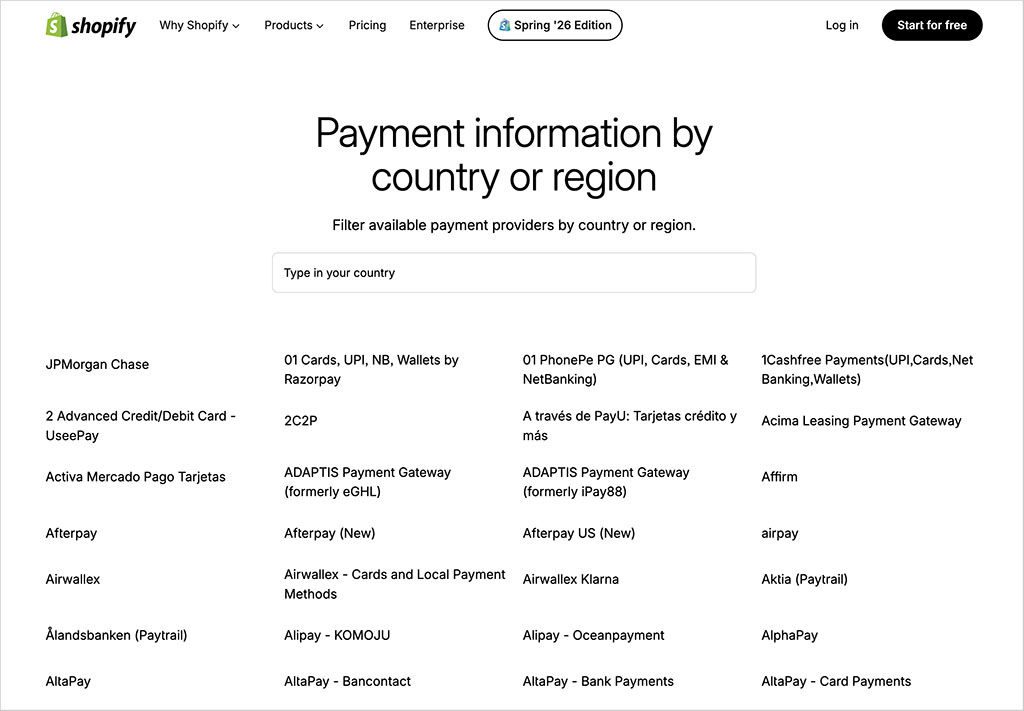
By contrast, Squarespace offers just three payment processing options for online transactions: its own payments solution, Squarespace Payments, along with PayPal and Stripe.
Squarespace Payments is available in 15 countries. These include the US, the UK, and several EU member states.
Squarespace payment processing options cater for a wide range of credit card types, along with Apple Pay and the recently-added Google Pay.
All this means that Squarespace covers many key digital wallet options. However, Shopify’s payment gateway selection is considerably wider, and allows for more localized options when it comes to payment processing.
Now, with a look at pricing and payments out of the way, I’m going to dig into the key features of Shopify and Squarespace and see how they compare.
Key features of Shopify and Squarespace
Interface and ease of use
Shopify and Squarespace’s interfaces are quite similar in terms of layout — both give you a menu on the left-hand side of the screen that you use to access different parts of the content management system (settings, site design, analytics etc.).
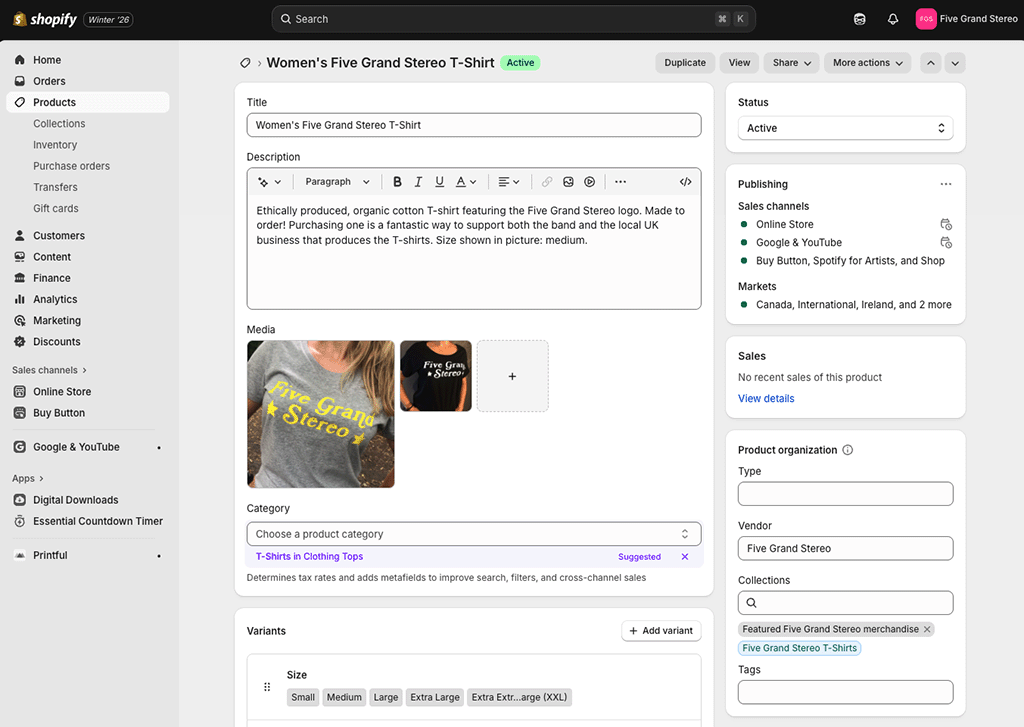
The right-hand side of the screen can be used to edit content, view data, add products and so on.
On the whole, I would say that Squarespace’s interface is the more elegant of the two; I’ve generally found it a bit easier to use than Shopify’s, especially where general content management tasks are concerned.

Its approach to setting up site navigation and its superb ‘Fluid Engine’ editor — which allows you to drag and drop content into pages in a very user-friendly way — make it extremely easy to use.
Squarespace’s ecommerce features are arguably slightly easier to use too — but that said, this is probably because there are fewer of them available.
While by no means difficult to use, my view is that Shopify’s user interface is not quite as slick or intuitive — and setting up pages with it can take a bit longer than in Squarespace.
That said, Shopify’s content management system has been much improved over the past couple of years, thanks to the rollout of its “Online Store 2.0” interface.
This improved version of Shopify provides a drag-and-drop editor that lets you — in a similar way to Squarespace — use content sections and blocks to create highly customized, attractive page layouts.
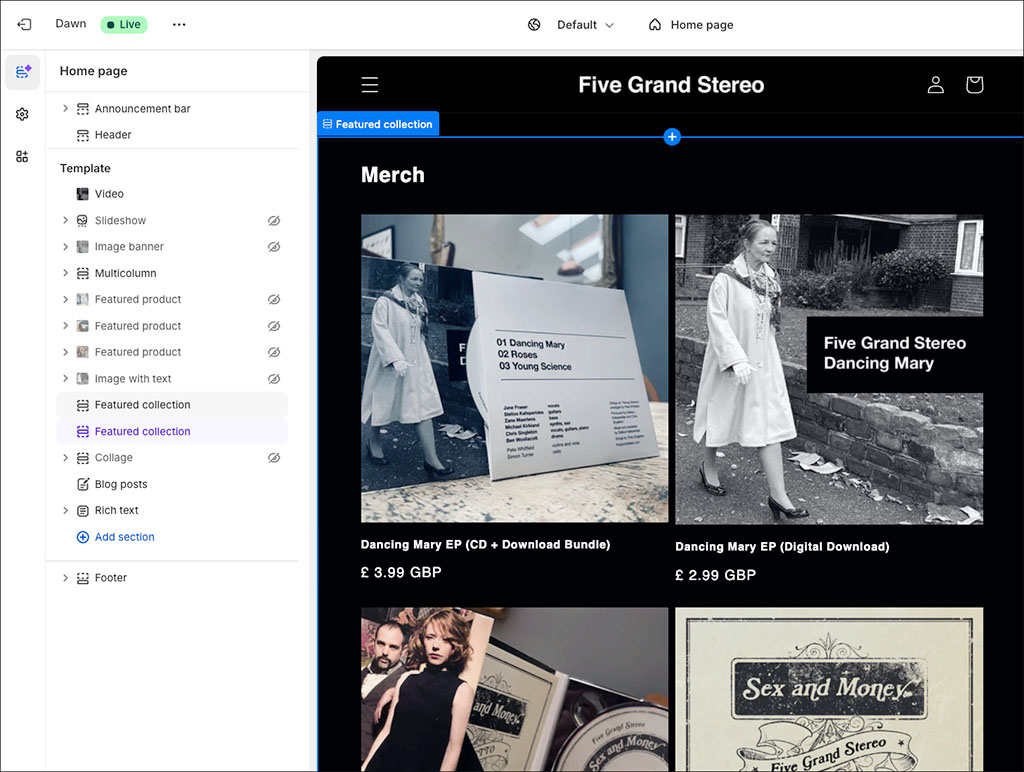
But even with these improvements made to it, my view is that Squarespace’s layout engine remains the more flexible and intuitive tool for general presentation of content.
This is because Shopify’s drag-and-drop editor doesn’t let you edit individual pages. Instead, you use it to edit templates which you then apply to pages (with the core page content still being edited using a WYSIWYG editor).
If this sounds a bit confusing, you’re right, it is! But you do get used to it.
Now — and sticking with the topic of presentation — let’s take a look at templates.
Templates and visuals
As discussed above, Squarespace templates are gorgeous.
Although this is a very subjective area, I feel they are more contemporary or varied in nature than the free templates available from Shopify.
And, as things stand, there are considerably more free templates to choose from in Squarespace — there are 200 free templates bundled with Squarespace, but Shopify only gives you 24.

Now, in my view there’s definitely a ‘wow’ factor with certain Squarespace templates that sets them apart from those offered by similar website builders and ecommerce platforms, including Shopify.

Depending on your chosen Squarespace template, you’ll find lots of nice visual effects in play, with images and text that gracefully fade in and out as users scroll through a site.
Squarespace templates can be further enhanced, thanks to built-in integrations with Unsplash and Getty Images (stock photo sites that offer free and paid-for images respectively).
These integrations provide you with a very easy way to add stock images to your website — when adding a picture to a page, you can simply use a search box to find something suitable on either service.

Both integrations are great and are particularly helpful to bloggers who need to find strong images quickly to accompany their posts, or Squarespace designers who are working on sites for clients who have not supplied any photos.
The Unsplash integration is particularly welcome, given that the quality of its free images is in most cases pretty high.
And if all that wasn’t enough, Squarespace makes it really easy to create stunning video backgrounds on any page, either by uploading your own video or providing a YouTube / Vimeo URL. A range of video playback speed options and colour filters let you further customize your video background.
⚠️ One thing to watch out for in Squarespace is that in the latest version of the platform (7.1), you can’t switch templates! If you want to apply a new Squarespace style to your site, you’ll need to recreate it manually, or rebuild your site entirely.
This is far from ideal, and I think it would be much better if — as is the case with Shopify — you could just switch to new templates easily (and preview them on your website first).
Although Squarespace has a great reputation when it comes to templates, Shopify is by no means a slouch in the visuals department.
The free Shopify templates are aesthetically pleasing and, in my view, much better than a lot of the ‘out-of-the-box’ templates provided by competing platforms.

Additionally, if the 24 free Shopify templates don’t meet your requirements, there is a Shopify theme store you can buy a ‘premium’ template from.
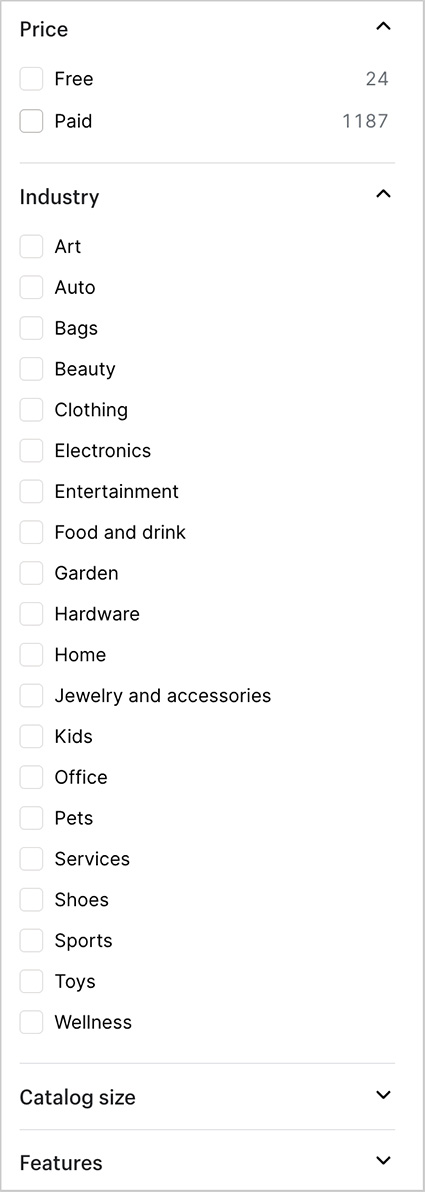
The template store gives you 1,187 paid-for Shopify themes to choose from, many of which contain a few variations. So there is a significantly wider range of templates available from Shopify than Squarespace — so long as you don’t mind the additional cost of using a premium theme (these involve a one-off payment of between $100 and $500).
The paid-for Shopify templates are similar in quality to the Squarespace ones, offering contemporary design features such as full-bleed content and video backgrounds, and helpful ‘feature filters’ (pictured below) are provided to help you narrow down the template selection to themes that are most likely to meet your requirements.
As with Squarespace, Shopify lets you use a built-in library of royalty-free stock photos to populate your themes with imagery.

Finally, all the Shopify and Squarespace themes are responsive, meaning that templates automatically resize themselves to suit the device they are being viewed on — mobile, tablet or desktop computer. This gives both platforms a key advantage over competing platform Wix, which doesn’t offer truly responsive templates.
For me, the bottom line with templates is that both Shopify and Squarespace provide a wide range of attractive template options.
It is worth noting however that the majority of Squarespace templates are mainly aimed at users creating general-purpose websites and portfolios, whereas every Shopify theme is 100% geared towards ecommerce applications.
(That said, you can still sell products on any Squarespace site, regardless of which template you choose.)
Using AI to create your own templates in Shopify and Squarespace
AI is everywhere these days, and both Shopify and Squarespace now let you use it to create a brand new template rather than selecting a pre-existing one.
In the case of Squarespace, this is done by answering a few questions and letting an AI come up with the best layout based on your responses.
In Shopify, you use a prompt to tell the platform what kind of store you’d like to create (see my screenshot below for an example).
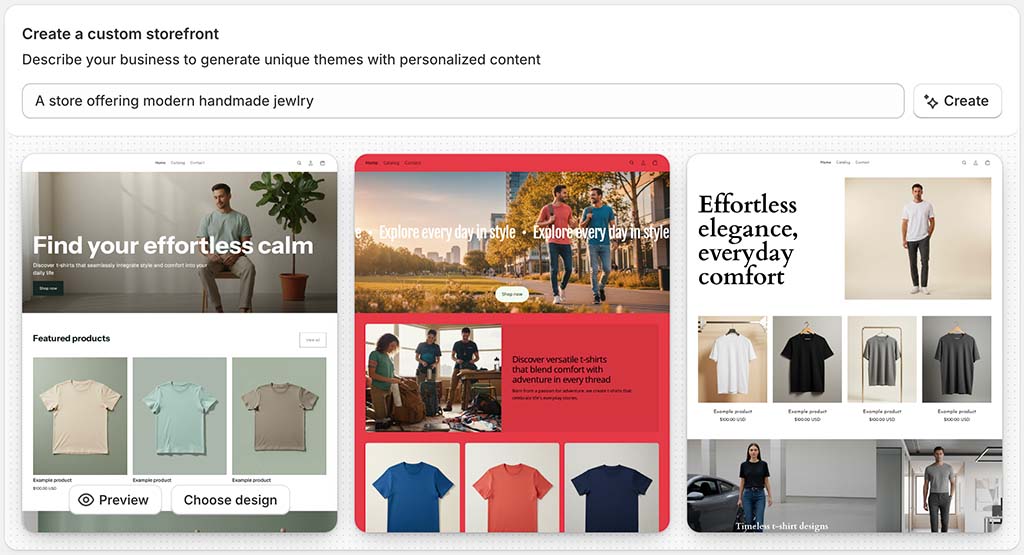
In terms of which approach is better, it will generally depend on whether you prefer a ‘Q&A’ approach to store building (Squarespace’s) or a prompt-driven one (Shopify’s).
One thing that I feel Squarespace does better here is ‘editing as you go’ — while Shopify’s AI store builder presents you with a finished template based on a single (and fairly short) prompt, Squarespace’s gives you the opportunity to tweak colors, fonts and layout as you progress through the AI build process.
Editing site code in Shopify and Squarespace
Shopify gives you very extensive control over the code of your site — you get full access to the HTML and CSS of your website on all plans except the ‘Starter’ one.
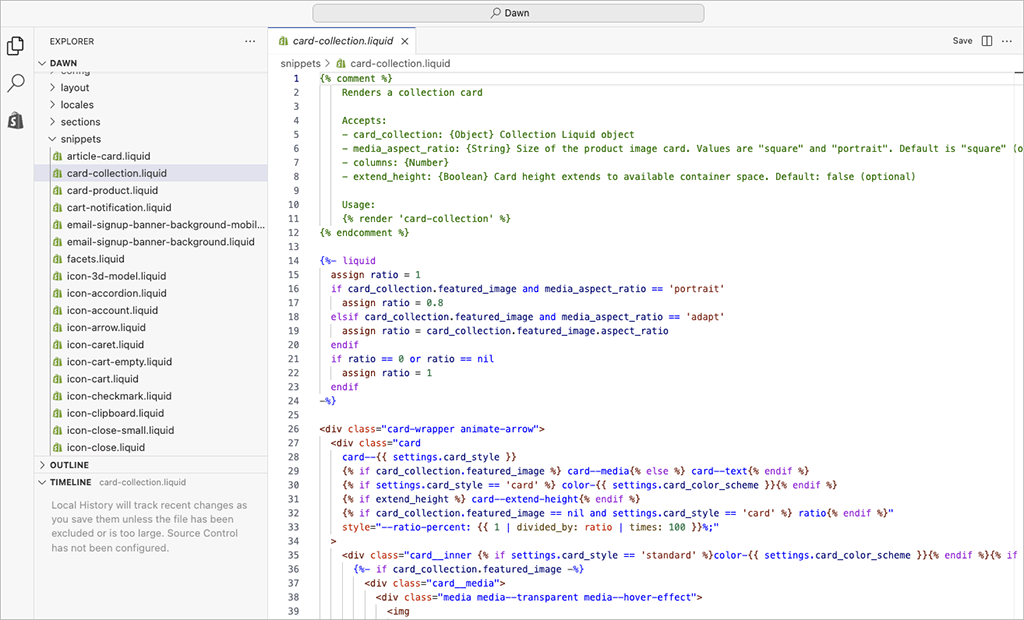
As for Squarespace, on its ‘Core’ and higher plans, you can edit the CSS and certain bits of HTML. These plans let you insert code blocks onto pages, or inject HTML/JavaScript into the header of your site.
One thing to be aware of, however, is that the level of customer support you can expect from both Shopify and Squarespace may become more limited when you add your own code to your site (more on support later).
Another point to note is that coding in Shopify involves using its proprietary ‘Liquid’ template language, which may present a learning curve to some.
(For the record, my coding skills are relatively basic, but I got to grips with Liquid easily enough.)
Overall, when it comes to giving you control over your code, Shopify takes the win.
Importing and exporting content
Squarespace imports and exports
It’s easy enough to get content and products into Squarespace. Helpful ‘wizards’ are provided to help you import pages, posts and other content from WordPress, Blogger and Tumblr; and, so long as you are on a ‘Core,’ ‘Plus’ or ‘Advanced’ Squarespace plan, you can import products via CSV or, using an import tool, from Shopify, Etsy or Big Cartel.
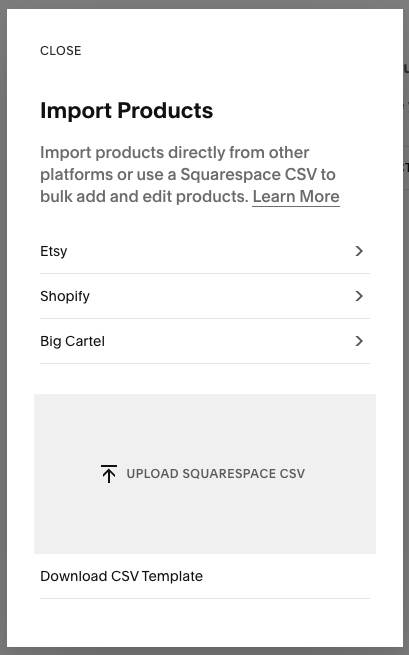
When it comes to exports, you can export pages, posts and images to WordPress format. This gives you a bit of flexibility should you ever wish to migrate your site to another platform.
There are limitations to watch out for when it comes to exporting products from Squarespace, however:
- Only physical and service products can be exported.
- A limit of three variants per product (color, size, material etc.) applies.
- Product reviews won’t export.
Shopify imports and exports
Shopify lets you import and export products easily enough via CSV and, unlike Squarespace, digital products can be exported (albeit with the aid of a third-party app).
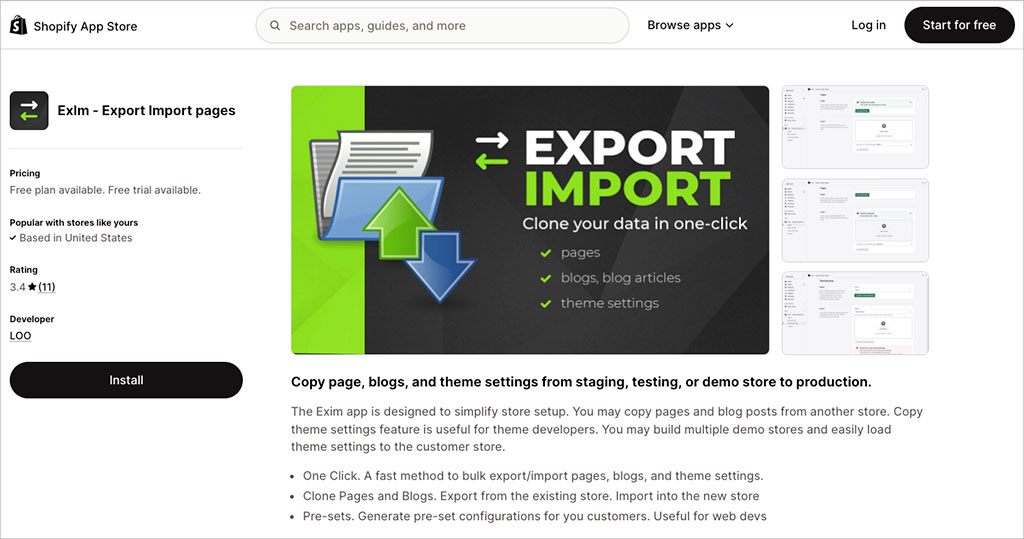
As for importing and exporting pages and blog posts, this isn’t really doable out of the box with Shopify (unless you’re on a Shopify Plus plan). But again, third-party apps can help here: for example, the ExIm app (pictured below) gives you a good range of options for getting your content in and out of Shopify.
The key takeaway here is that if you are planning on hosting thousands of products or blog posts on your site, or envisage migrating to another platform in future, the safer option is Shopify.
Product management
The type of products you can sell
Both Shopify and Squarespace let you sell physical goods, digital goods and subscriptions.
Shopify has an immediate edge when it comes to physical products, because it lets you sell as many of them as you like, while Squarespace limits you to selling 10,000 (that’s still loads, and probably fine for most users — but for ‘pro’ merchants and dropshippers, it’s something to bear in mind).
Shopify wins again when it comes to selling digital goods — music, photos, ebooks, etc. — because it is much more generous regarding the size of the product you can sell. It lets you sell files of up to 5 GB in size, which dwarfs Squarespace’s 300 MB limit.
As for subscriptions, Squarespace lets you do this ‘out of the box’. But in Shopify, you’ll need to make use of an app to facilitate them (on the plus side, a free one — ‘Shopify Subscriptions’ — is available).
It’s worth pointing out however that if you want to use Squarespace’s built-in subscription feature and you’re on one of its cheaper plans, you’ll pay significant transaction fees — 7% or 5% respectively on its ‘Basic’ and ‘Core’ plans.
If you’d like to create a digital subscription, members’ area or online course in Shopify, you’ll always need to use a third-party solution — for example, the ‘Locksmith’ app (which starts at $12 per month) or the ‘Courses Plus’ app (which starts at $19.99 per month).
Product options and variants
In Shopify, you can create just three options for your store products — for example, color, size or material. By contrast, Squarespace lets you work with up to six product options.
(It’s worth noting that you can get around product option limitations entirely in Shopify though, so long as you are prepared to pay for a third-party app to do so — a popular solution for this being the ‘Infinite Options’ app.)
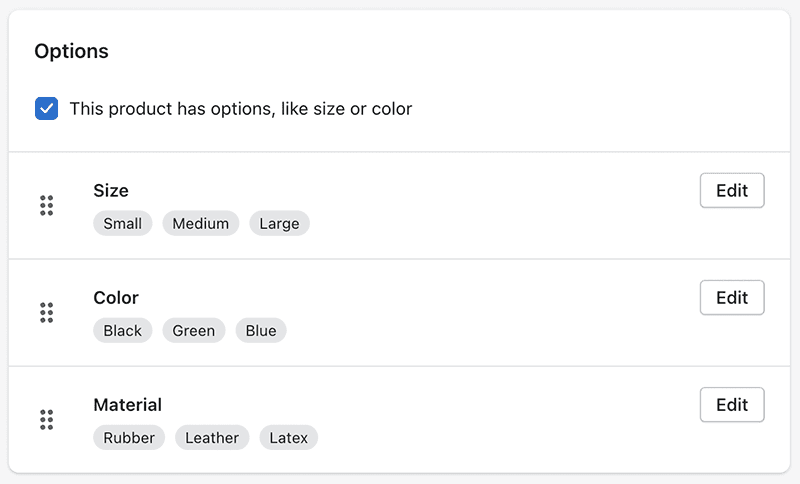
Shopify lets you list 2,048 ‘variants’ of your products based on the options you’ve created. (Variants are combinations of product options — for example a large blue t-shirt would be one variant, a small red t-shirt another and so on.)
Squarespace is considerably less generous than its rival here, giving you a 250 variant limit.
Product images
One thing that I feel is handled considerably better by Squarespace than Shopify is product images.
With Shopify, unless your images have a consistent aspect ratio, they will be laid out in a pretty incoherent manner — visitors to your site will see an unattractive mish-mash of differently-sized photos in your product catalogs.
When working on Shopify sites, I’ve found that there are two ways to get around this problem: first, you can manually edit all your images (either using a photo editing app like Photoshop, Canva, Adobe Express or Shopify’s built-in picture editor) so that they all have the same aspect ratio — but this is a bit of a pain.
Alternatively, you can make use of a third-party Shopify app such as ‘Pixc’ to resize images on your store automatically after you upload them (fees apply to use this, though).
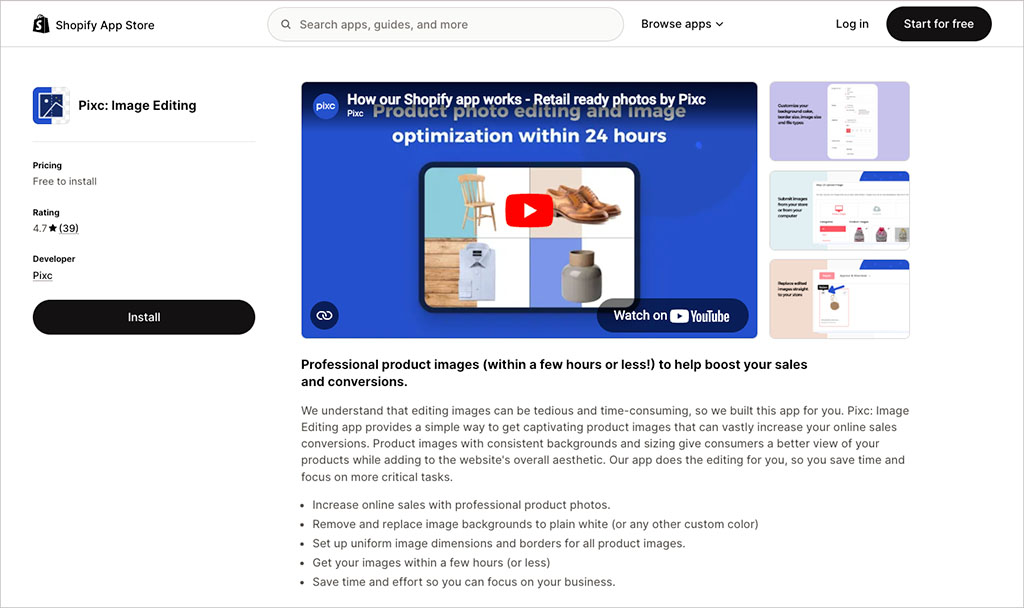
Neither workaround is ideal; it would be better if Shopify just allowed you to set a standard product image ratio out of the box that could be used across all images in your store.
Squarespace provides a much better approach here: you simply pick an aspect ratio for your product images and the system will automatically crop all your pictures to that ratio.
If you like, you can also specify a ‘focal point‘ for individual product images in Squarespace — this part of the photo will be emphasized within the cropped image (see my screenshot below to see how this works).

In an era of responsive websites, this focal point feature is important, because it helps ensure that the main part of your image is foregrounded whenever your image is automatically cropped for viewing on smaller screens.
(Shopify lets you set focal points for regular images, but oddly not for product ones).
So, when it comes to image management, it’s a definite win for Squarespace.
Dropshipping in Squarespace and Shopify
Many people who dip their toes into the waters of online retailing do so because they want to start dropshipping products.
Dropshipping is a method of online retailing where you don’t keep what you’re selling in stock — instead, you take an order, send it to a supplier, and they send the goods to the client.
(Check out our video below for more details on how it works).
With dropshipping, your online store essentially becomes a ‘middleman’ for another business. The plus side of this model is that it lets you start a business without a significant investment; the downside is that profit margins tend to be quite low due to high levels of competition.
Additionally, it’s hard to be sure of the quality of the dropshipped goods you’re promoting and whether they were produced ethically.
Pros and cons of dropshipping aside, if you’re interested in starting a dropshipping business, Shopify is better than Squarespace.
There is a very large range of dropshipping apps available for Shopify to help you source and sell inventory — I counted 922 while researching this piece. These include integrations with key services like DSers (AliExpress), Spocket, Modalyst and many others.
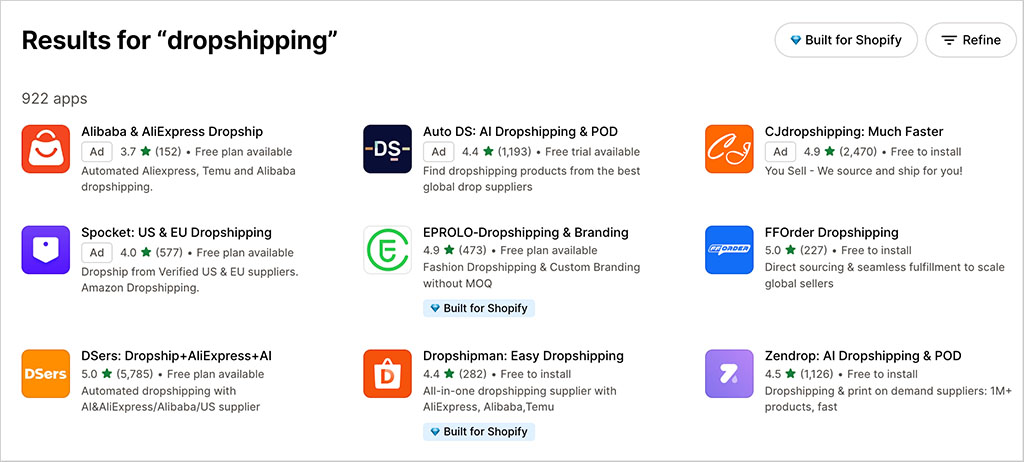
Although Squarespace doesn’t offer nearly as many dropshipping integrations to its users, the number of ‘extensions’ that facilitate dropshipping has been gradually increasing.
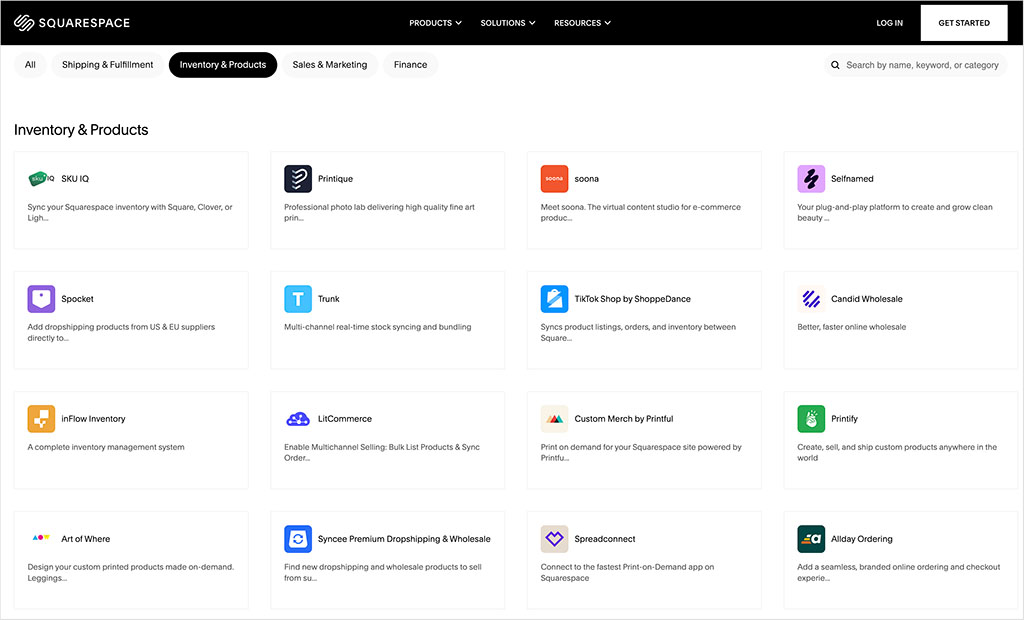
Available dropshipping extensions for Squarespace now include:
- Spocket and Syncee — for dropshipping physical goods
- Printful and Printify — for print-on-demand products
- Art of Where and Spreadconnect — for clothing / accessories
- Printique — for photo-based products
- Selfnamed — for cosmetic products.
It’s great to see Squarespace starting to provide more dropshipping options — but because of its much more extensive range of dropshipping apps and integrations, the winner in this area remains Shopify.
Point of sale (POS) in Shopify vs Squarespace
Point-of-sale functionality allows you to use card readers — and other selling hardware — in conjunction with your online store, to sell in a physical location (a retail outlet, market stall, event etc.).
Not only does POS let you take payment for goods, it lets you link your selling hardware (card readers, tablets etc.) to your online store’s back end too — meaning that your inventory levels remain accurate, regardless of whether you make an online or an offline sale.
Both Shopify and Squarespace offer POS features — Shopify via a built-in POS system and Squarespace via an integration with Square, an ecommerce company that specializes in providing POS hardware.
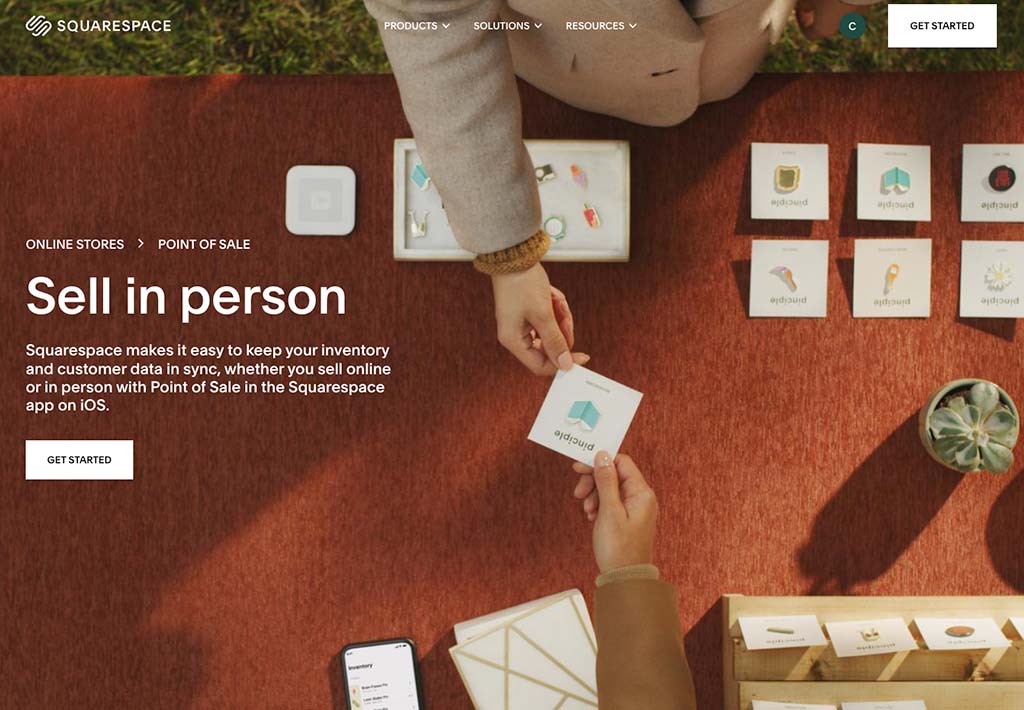
The main difference between the Shopify and Squarespace POS offerings boils down to what selling hardware you can use.
The Shopify point of sale hardware range is very extensive — it lets you sell using barcode scanners, card readers, cash drawers and receipt printers (to name just a few of the available POS items). You can buy any of these tools individually, or as a package.

You can purchase this POS hardware directly from the Shopify Hardware Store in 15 countries — these include the US, the UK and several EU countries.
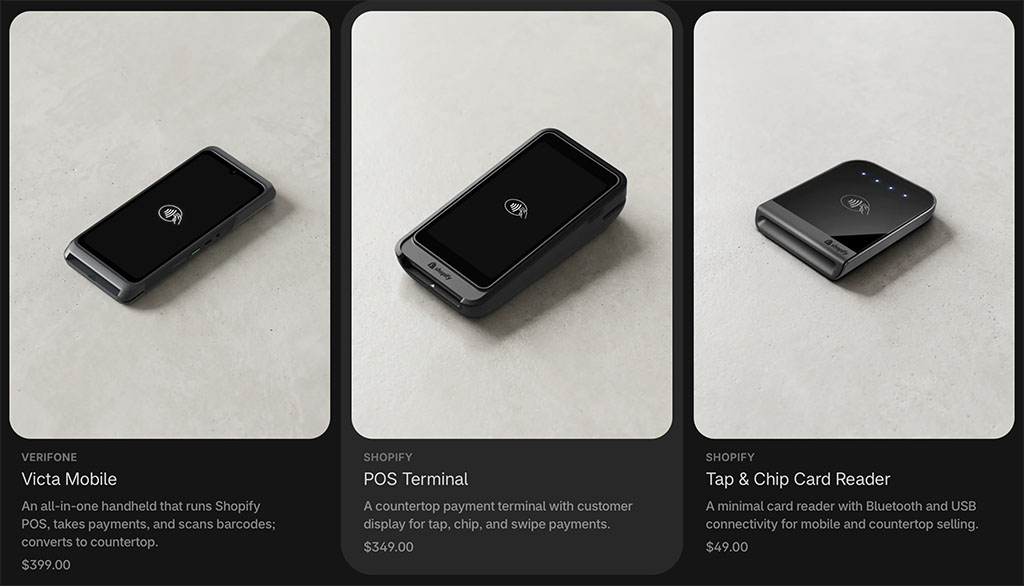
Outside these territories, supported hardware is available from authorized resellers.
By contrast, Squarespace’s built-in POS system is much more limited. In most markets, it only lets you integrate the Square card reader into your setup — and even then, support is restricted to merchants in the United States. The main exception is the UK, where Squarespace also supports ‘Tap to Pay’ on a compatible iPhone, allowing merchants to accept contactless payments without a separate card reader.
Shopify also offers several other POS features that are not available from Squarespace yet, including staff accounts, permission setting, staff PINs and store management. However, you will need to invest in an $89 per month, per location add-on — ‘Shopify POS Pro‘ — to avail of most of this functionality.
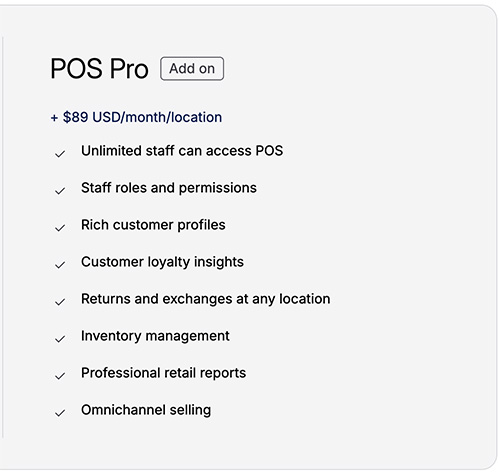
Interestingly, if you only want to use Shopify as a POS solution, this is possible too — you just sign up to its ‘Starter’ plan, which costs $5 a month. Squarespace doesn’t give you a similar low-cost solution for accepting in-person payments.
Finally — and unlike Squarespace — Shopify POS lets you sell in multiple locations, with the following inventory location limits applying per plan:
- Shopify Starter — 2
- Basic Shopify — 10
- Shopify — 10
- Advanced Shopify — 10
- Shopify Plus — 200
This makes Shopify more suitable for use by retail chains.
Now, it should be said here that there IS a way to extend Squarespace’s POS functionality, and that’s via a recently introduced add-on for the platform — the ‘SKU IQ’ extension. This lets you connect Squarespace to third-party POS platforms, including well-known solutions like Square, Clover and Lightspeed.
However, using this extension involves a $45 monthly fee, plus whatever the third-party POS system charges you — not to mention configuration time.
Ultimately, if POS is important to you, the better option is nearly always going to be Shopify.
My Shopify POS video review
I interviewed a Shopify merchant, Liz Jones, about her experience of using Shopify POS — you can watch this below to get an in-person sense of the pros and cons of the system.
Multi-currency selling
You tend to get more online sales if you sell in the currency used by your site visitors.
So, if you’re selling in multiple countries, it’s good to let your potential customers choose their own currency — or, better still, to present your products in your site visitors’ currency automatically.
Now, as things stand, Squarespace doesn’t let you do any multi-currency selling at all.
But thanks to its ‘Markets’ feature — which lets you define up to 50 selling regions (‘markets’) featuring languages and currencies of your choice — Shopify does.
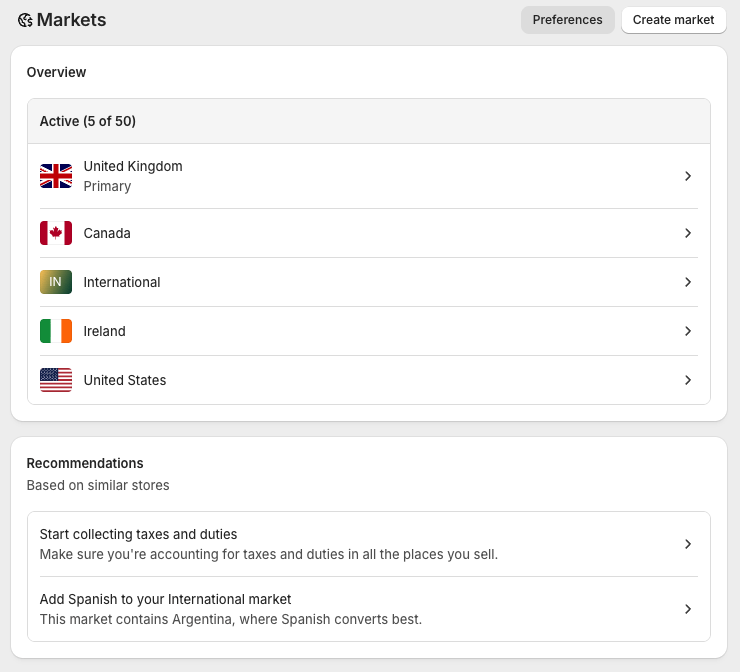
This feature only works if you are using Shopify Payments as your payment processor, however. If you live in a country where Shopify Payments is unavailable, you’ll need to use a third-party app to handle multi-currency selling instead.
Download our free Shopify Startup Kit


Our free Shopify Startup Kit is a must for anyone thinking of building an online store with Shopify. Containing a comprehensive e-book on starting a Shopify store, video tutorials, PDF cheatsheets and much more, it’s packed full of practical advice on how to get a Shopify business off the ground. It’s available for free to Style Factory readers — but for a limited time only.
Multilingual selling
Shopify lets you create up to 20 different language versions of your website on all paid-for plans except the ‘Starter’ plan (as with multi-currency selling, this is facilitated by the ‘Shopify Markets’ feature).
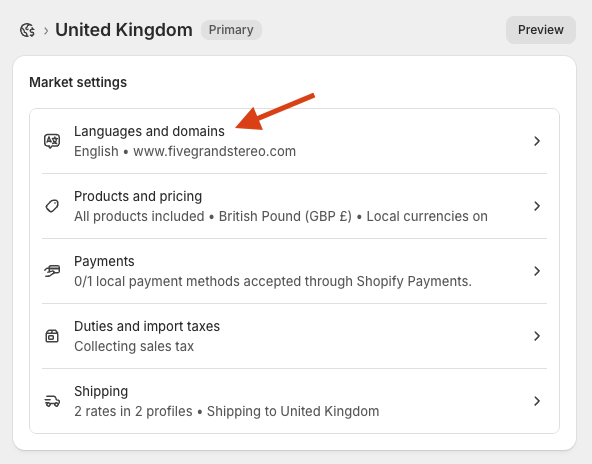
When you enable multi-language selling in Shopify, a language folder is added to your domain. So you’ll end up with www.myshop.com/fr/, www.myshop.com/de/ etc.
If you prefer, you can also use an international domain — myshop.fr, myshop.de, etc. (doing so can provide some SEO benefits).
As for Squarespace, although you can technically use the platform to create different language versions of your website, you’ll have to use a paid-for third-party app to do so: Weglot.
As the video below shows, this is very straightforward, because Squarespace has recently teamed up with Weglot to provide a ‘deep,’ official integration.
Costs for using Weglot can be high however — as you can see from the pricing table below, if you translate your Squarespace site into 20 languages, you’re looking at a monthly fee of at least $769.
(That’s not really sustainable for a lot of the types of users who turn to DIY website builders like Squarespace).
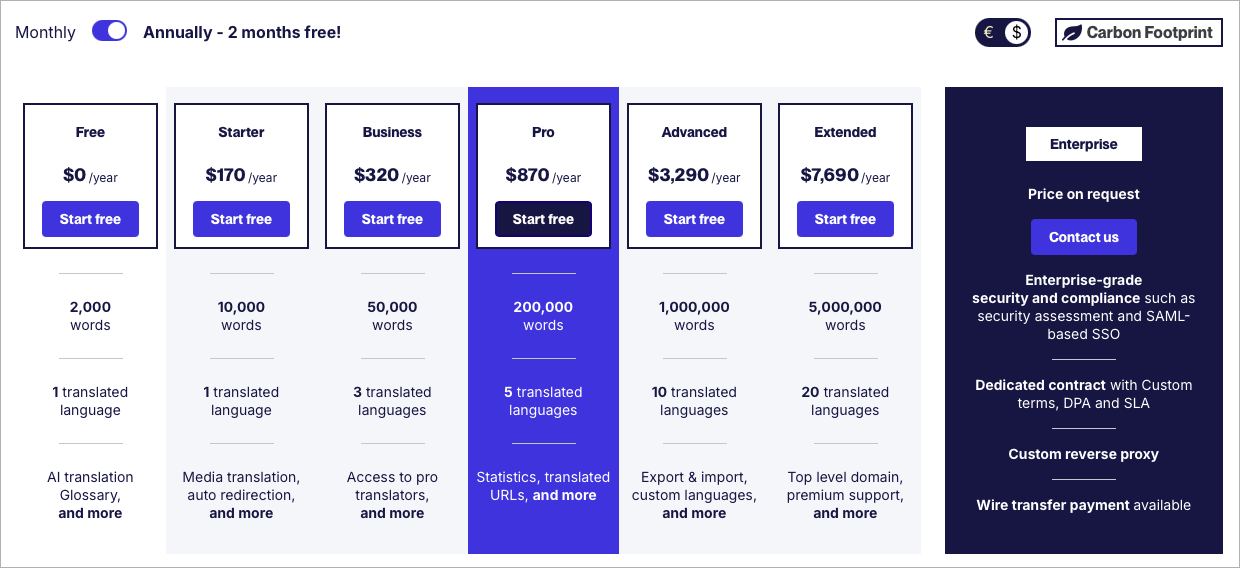
So, although Squarespace does now make it fairly easy to translate websites, because of the potentially large expense involved in doing so, I’m going to give the win here to Shopify.
Shipping options
Both Squarespace and Shopify allow you to set the following shipping rates:
- Free shipping rates
- Flat rates
- Weight-based rates
- Local pickup rates
- Calculated (‘real time’) shipping rates
Shopify goes one better by allowing you to set price-based rates too.
Zooming in: real-time shipping rates in Shopify and Squarespace
Shopify
When it comes to real-time shipping rates — where carriers provide live estimates at checkout, based on distance, weight and the number of boxes needed to ship items — you have two options in Shopify.
If you’re based in the US, Canada, Australia, the United Kingdom, France, Germany, Italy or Spain, you can ship via local postal companies that partner with Shopify to provide calculated shipping rates and preferential rates on shipping.
This service — ‘Shopify Shipping‘ — is available on all plans and the discounts provided can be quite generous (up to 88%, in fact!).
The other option is to provide calculated rates using a carrier of your own choice. To do this, you’ll need to be on a Shopify Grow or Advanced Plan (with Grow users needing to pay an additional fee to unlock the functionality).
Squarespace
On its ‘Core’ plan or higher, Squarespace integrates several carrier services to provide real-time carrier shipping quotes. This functionality is available in several countries, including the US, the UK, Singapore and many EU member states; and real-time shipping quotes for major carriers like DPD, UPS, DHL and Parcelforce can be provided.
Alternatively, you can use the ‘Easyship’ Squarespace extension to provide real-time shipping quotations — this aims to let your store visitors access the cheapest shipping rates and lets you buy and print discounted shipping labels too.
Abandoned cart saving
Abandoned cart saving is a feature that lets you automatically email people who left your store midway through a purchase, encouraging them to complete it. This functionality can significantly increase the number of sales from your store.
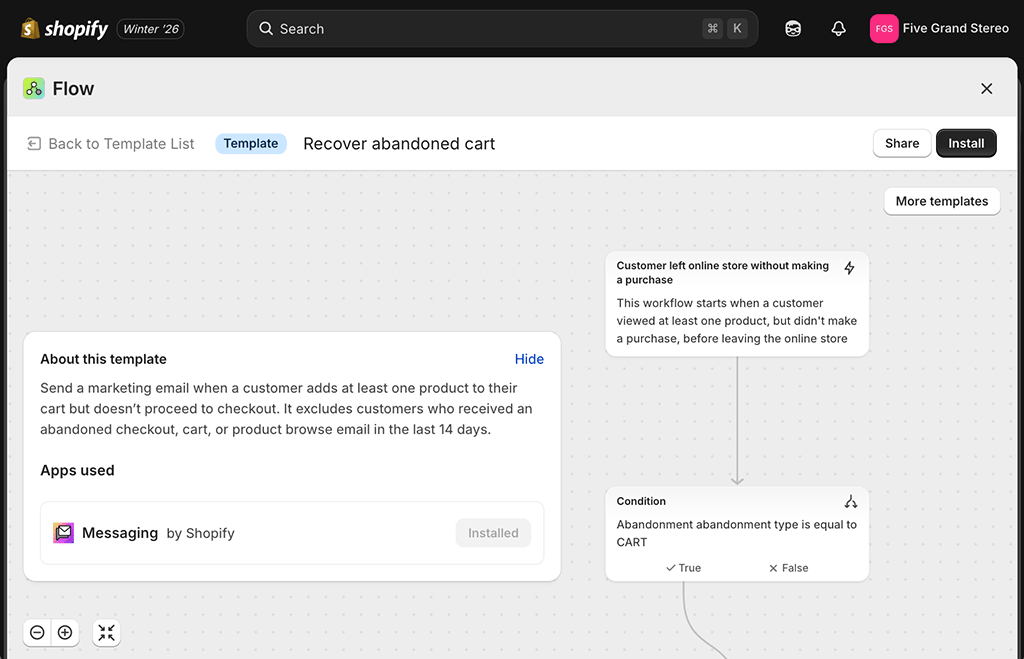
And the abandoned cart recovery feature in Shopify is considerably more sophisticated than Squarespace’s — it gives you the option to create fully editable workflows that let you specify the exact conditions that should trigger an abandoned cart reminder (this is done via its increasingly impressive marketing automation system, ‘Shopify Flow’). Shopify also gives you more control over how many reminders are sent.
So, if abandoned cart saving is an important feature for you, it’s a clear win for Shopify.
Tax calculations in Squarespace and Shopify
Both Shopify and Squarespace let you apply the correct tax rules automatically for:
- countries in the EU
- the UK
- the USA
However, Shopify also lets you perform automatic tax calculations in:
- Canada
- Norway
- Switzerland
- Australia
- New Zealand
- Singapore.
So, if you sell in one of those countries, that’s something to bear in mind.
The other key point to note about tax collection in a Shopify vs Squarespace debate is that unlike Shopify, Squarespace can only really be used as a ‘B2C’ (business-to-consumer) solution — if you’re selling products to a business audience, it’s not going to be a great option for you. This is mainly because Squarespace can’t collect or validate customer VAT numbers at checkout — meaning that it can’t automatically apply reverse-charge rules, or exempt eligible business buyers from VAT.
Finally there’s fees to consider. From February 2026, Squarespace will charge a per-transaction fee for automated tax calculations (ranging from 0.15% on lower-tier plans to 0.05% on higher-tier ones).
Shopify’s system is not entirely free either, but no charges are applied unless your store brings in over $100,000 in annual sales. After that, a 0.35% fee (0.25% for Plus users) is charged per transaction, capped at $0.99 per transaction and $5,000 per region annually.
Ultimately, Shopify wins when it comes to automatic tax features — this is down to its support for more countries, its richer compliance tools, and the fact that its tax calculation service is available for free to many merchants.
Selling on other sites with Shopify and Squarespace
Both Squarespace and Shopify let you sell not just via a website but on other ‘sales channels’ too — you can use either website builder to sell on platforms like Facebook, Instagram, eBay and Amazon.
Depending on the sales channel involved, you may need a paid-for app or extension to do so (and this can be expensive where Squarespace is concerned, because the extension you’ll need for doing this, Trunk, starts at $35 per month).

What’s particularly nice about Shopify when it comes to selling on other websites is that you can use its ‘Buy Button’ feature to embed products on any sort of online presence that permits you to add a snippet of code to it.
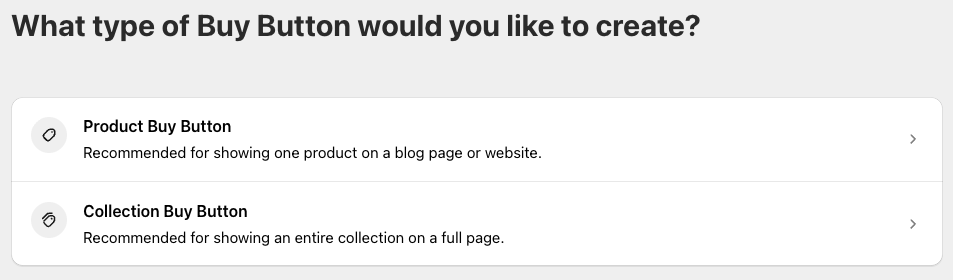
So, for example, if you were reaching out to bloggers asking them to review a product, you could give them the option to add a ‘product card’ (example below) to their posts — this would allow their readers to purchase it really quickly and easily.

Currently, there’s not an equivalent feature available from Squarespace.
Shopify’s Agentic Storefronts feature
Shopify has also introduced Agentic Storefronts, a feature that makes your products discoverable through AI shopping assistants such as ChatGPT, Microsoft Copilot, Google AI Mode and Gemini. Instead of relying solely on customers visiting your website or searching on marketplaces, your products can be recommended when shoppers ask these AI tools for buying advice in natural language. Depending on the AI platform involved, customers can either be taken to your Shopify checkout to complete their purchase or, in some cases, complete it directly within the AI interface using Shopify-powered checkout. All orders are processed through your Shopify store, and you retain full control over branding, payments and customer relationships.
Reporting
I’ve always found Shopify to be a better option than Squarespace in the reporting department. Although the Squarespace reporting offering has improved quite a bit over the past couple of years, the stats provided are still of a much more basic nature than those found in Shopify.
In Squarespace, you’ll find a simple but effective overview of site visitors, traffic sources and sales — but Shopify’s analytics offering is much more extensive, giving you a set of detailed reports that include:
- finance reports
- sales reports
- customer reports
- acquisition reports
- behavior reports
- website speed reports
This is just scratching the surface however — when testing Shopify’s analytics capabilities, I was able to choose from over 200 different report types.
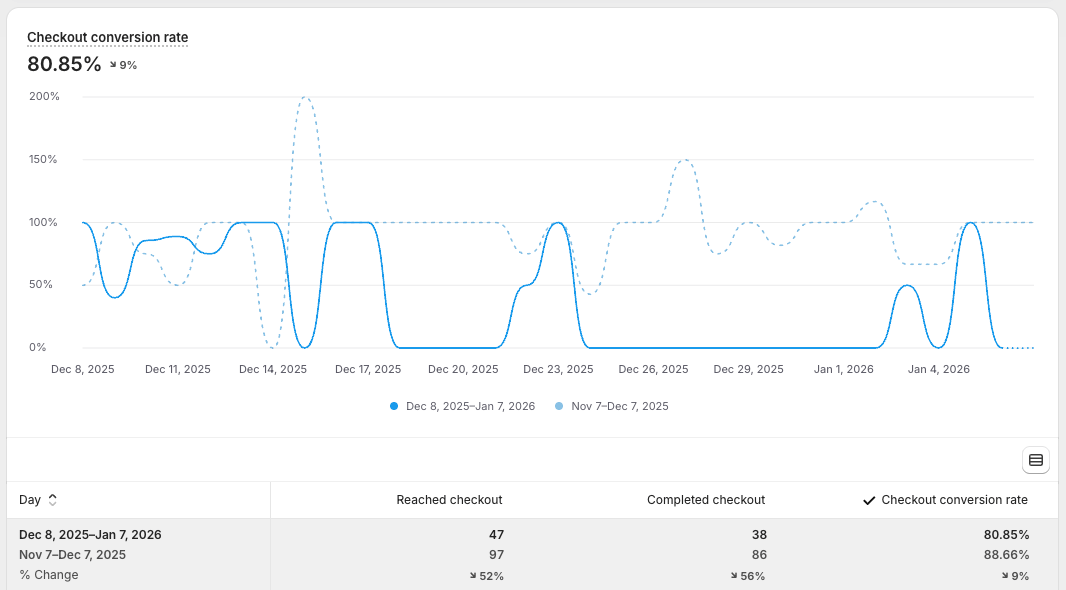
If you like, you can use Shopify to create your own custom reports too — and importantly, this functionality is available on any plan.
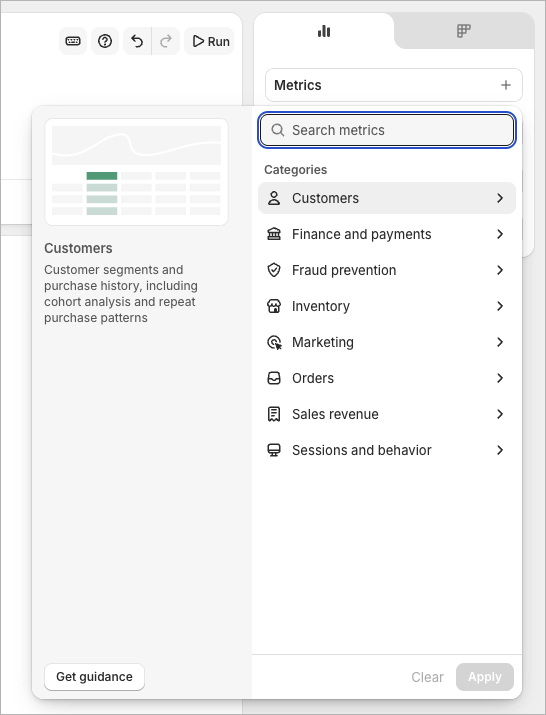
Squarespace charges a premium for more advanced reporting features — if you want enhanced ecommerce analytics, you’ll need to be on one of the more expensive ‘commerce’ plans.
And even if you do opt for one of these commerce plans, you’ll find that although they let you access a couple more ecommerce reports (containing purchase funnel and abandoned cart data), they’re pretty basic in nature and not remotely as informative as the Shopify analytics offering.
SEO (Search Engine Optimization) in Squarespace and Shopify
Squarespace and Shopify both handle the basics of search engine optimization well, giving you good control over all the key ‘on-page’ SEO elements.

I’ve found that both platforms make it easy to access and modify:
- page URLs — the web address for each of the pages on your site
- page titles — the titles you see in search results
- meta descriptions — the descriptions of pages you see in search results
- 301 redirects — information that tells Google where to find a page after you’ve changed its URL and lets you preserve any ‘link juice‘ associated with it
- alt text — text that describes images to search engines (and to those using screen readers).
I’d argue that Shopify makes staying on top of SEO a little bit easier than Squarespace, however.
First, for all products and pages, Shopify generates a page title and meta description automatically based on the content of your page. A lot of the time — particularly where products are concerned — this provides a very good starting point for SEO.
Squarespace doesn’t do this.
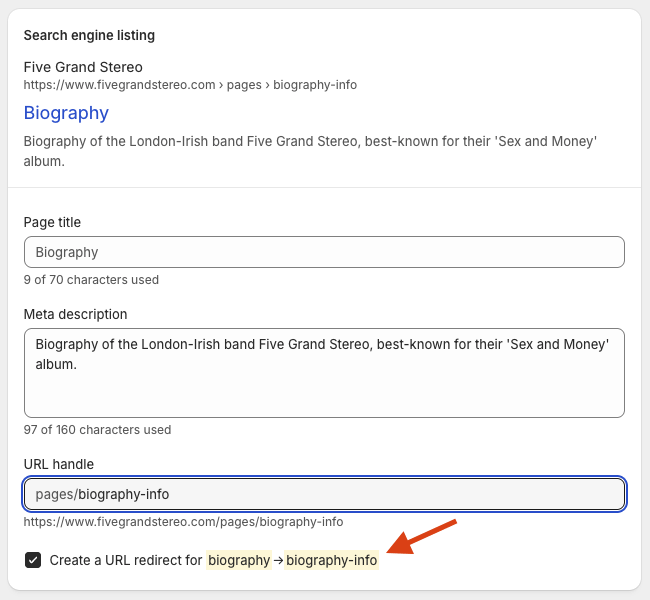
And I feel that Shopify handles URL redirection better than Squarespace, too. If you change a page’s URL, Shopify will immediately prompt you to create a 301 redirect to that page.
(Redirects tell search engines about the new URL and help protect your search rankings).
And significantly, this is done automatically for you (see my screenshot below).
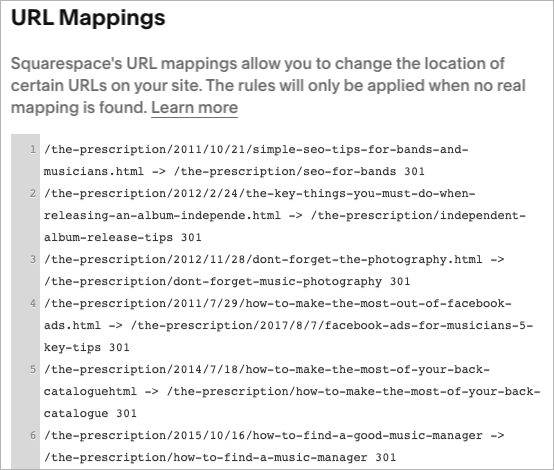
By contrast in Squarespace, if you change a page URL, you will have to manually create the 301 redirect (the process for which is a bit fiddly; and creating 301 redirects is quite easy to forget to do).
Shopify also gives you more control over your robots.txt file (which lets you specify which pages you want to exclude from indexing by search engines).
And significantly, you can integrate Yoast SEO with Shopify — this is a popular, sophisticated SEO tool that assesses your pages and gives you an easy-to-action list of recommendations for improvements.
WordPress aside, no other website building platforms except Shopify let you use Yoast SEO, so this integration — costing $19 per month — represents something of a unique selling point for the platform.
(That said, a tool that aims to provide a similar service to Yoast is now available in the Squarespace extension store — SEOSpace. This lets you perform basic website audits and keyword research, but costs rather more than Yoast — $99.99 per month for the full version).
When it comes to the very technical aspects of SEO — Core Web Vitals (Google’s site speed and stability requirements) and page speed — you have limited control over these with both Shopify and Squarespace. This is because both platforms use their own servers and proprietary code and templates.
So long as you don’t overdo it with web fonts and large images, however, I’ve found that it’s possible to meet Core Web Vitals standards with both platforms.

Shopify gives you more data here, though, in the form of detailed Core Web Vitals reports; these aims to help store owners understand and meet Core Web Vitals requirements. A simple dashboard (available in the ‘Themes’ section) can be used to get an at-a-glance sense of site performance, or alternatively, you can pull more detailed reports on specific Core Web Vitals metrics.

There is one SEO (or SEO-related) area where Squarespace has an edge over Shopify though, and that’s in its provision of AI visibility data. This effectively lets you track ChatGPT prompts and see if you’re getting any mentions in responses to them.

Shopify doesn’t yet offer this sort of prompt tracking as a native feature — to access this sort of data for a Shopify store, you’d need to subscribe to a brand monitoring tool like Ahrefs or Semrush.
📚 Related resources
For a rundown of how to optimize a Shopify or Squarespace site for search engines, you might like to check out our Shopify SEO and Squarespace SEO guides; you may also find our reviews of SEO tools like Ahrefs and Semrush helpful.
User account limits
When it comes to user accounts, Squarespace is much more generous than Shopify. While on most of its plans Squarespace lets an unlimited number of users access your site dashboard, Shopify limits this kind of access tightly, with the following number of accounts provided on each of its main plans:
- Starter — 1 user account
- Basic — 1 user account
- Grow — 5 user accounts
- Advanced —15 user accounts
(These are in addition to one ‘store owner’ account).
For me, these ungenerous user limits probably represent one of the most frustrating aspects of Shopify — even having multiple contributors to a blog can force you onto a more expensive plan than you might otherwise need.
Domain registration
When you purchase an annual Squarespace plan, you get a free custom domain name — yoursitename.com etc. — with it. This lasts for one year, after which you’ll have to pay for your domain name yourself. (If you opt for a monthly Squarespace plan, you can still buy a domain name from the company, separately, with renewal costs typically around the $20 per year mark).

Although you can also use Shopify to register a custom domain name, there is a cost associated with this (its domain names start at $14 per year).
The advantage of sourcing a domain from either Squarespace or Shopify is that you won’t have to worry about configuring domain name settings (DNS) when launching your store. Connecting your domain to your Squarespace or Shopify site will be extremely easy, with all the settings pre-configured for you.
The disadvantage is that if you buy a domain from Shopify or Squarespace, you are placing all your eggs in one basket — if for whatever reason you lost access to your Shopify or Squarespace account, and you had bought a domain from either platform, you would be losing access not just to your content management system but your domain name too.
Given that a domain is hugely important to a business (particularly well-established ones), this is a risk best avoided — I personally think it’s safer to buy a domain using a reputable third-party provider and tweak the DNS settings (which is not a terribly difficult job anyway) to map the domain to your Squarespace or Shopify website.
In terms of the range of domain names that you can buy from Squarespace or Shopify, you’ll find that neither platform offers as many top level domain (TLD) options as a dedicated domain name provider. For example, you might find that your country’s TLD domain is not catered for.
Marketing tools
Email marketing in Squarespace and Shopify
An extremely important aspect of running a website is capturing email addresses — your ability to communicate effectively with leads via e-newsletters is vital to business growth.
So let’s look at how Squarespace and Shopify compare on this front.
Integrating an email marketing tool with Squarespace and Shopify
Both Squarespace and Shopify allow you to capture email addresses to a third-party email marketing solution of your choosing — GetResponse, Campaign Monitor, Mailchimp or AWeber etc.
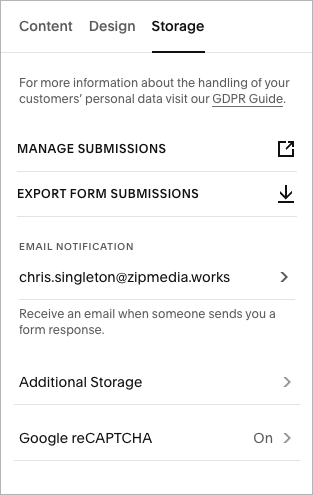
With the exception of Mailchimp, which is extremely easy to integrate with Squarespace, connecting email marketing solutions is generally easier in Shopify, due to more integrations for them being available in Shopify’s app store.
In most cases, to use a third-party email marketing tool with Squarespace forms, you’ll have to use Zapier to create an integration between the app and your Squarespace site — something that can result in additional costs and set p time.
Alternatively, you can use HTML code to embed forms from other email marketing providers onto Squarespace site pages.
But you mightn’t need to bother with integrating an email marketing tool at all, because both Shopify and Squarespace give you built-in features that let you create and send newsletters.
Let’s take a look at these.
Squarespace Email Campaigns
Squarespace’s built-in email marketing feature is called ‘Squarespace Email Campaigns’ — and you have to pay extra to use it.
Pricing for this is based on monthly email send limits, which are as follows:
- $12 to send 500 emails per month
- $20 to send 5,000
- $28 to send 10,000
- $40 to send 25,000
- $48 to send 50,000
- $60 to send 100,000
- $73 to send 150,000
- $96 to send 250,000
- $127 to send 350,000
- $169 to send 500,000
(Paying annually lets you save up to 30% on these fees).
These plans are pretty cheap by comparison to the plans available from dedicated email marketing solutions (especially at the top end of the pricing scale).
The key benefit of using Squarespace Email Campaigns is that you can manage both your website and mailing list — arguably the two most important online assets of any business — in one place.

And because it automatically pulls design settings from your website into its email editor, the newsletters you create end up being immediately consistent with your existing brand.
(That said, this brand consistency will depend on which typefaces you use on your site — not all fonts that you’ll find in the Squarespace website editor are available for use in e-newsletters).
When playing with Squarespace’s e-newsletter templates, I found them attractive and easy to edit; a drag-and-drop interface that is quite similar to Squarespace’s web page editor is provided to help you with the editing aspect.
Helpfully, you can insert content from your Squarespace site extremely easily into your newsletters (blog posts, product information etc.).
In terms of functionality, although it’s nice to see some autoresponder functionality being included with Squarespace Email Campaigns, it’s currently basic by comparison to that provided by dedicated email marketing tools like Omnisend, Mailchimp or GetResponse (we’re talking simple ‘drip’ campaigns only). And there’s no split testing or comprehensive email segmentation available.
Shopify Messaging
Shopify has introduced a similar email marketing tool into its product too, ‘Shopify Messaging.’
Slightly annoyingly, this comes in the format of an app that must be installed on your store before it can be used, but once this is done, it integrates pretty seamlessly with the Shopify environment.
As with Squarespace Email Campaigns, the main advantage of using Shopify Messaging is that it allows you to manage your website and mailing list in one place (and keep branding fairly consistent too).
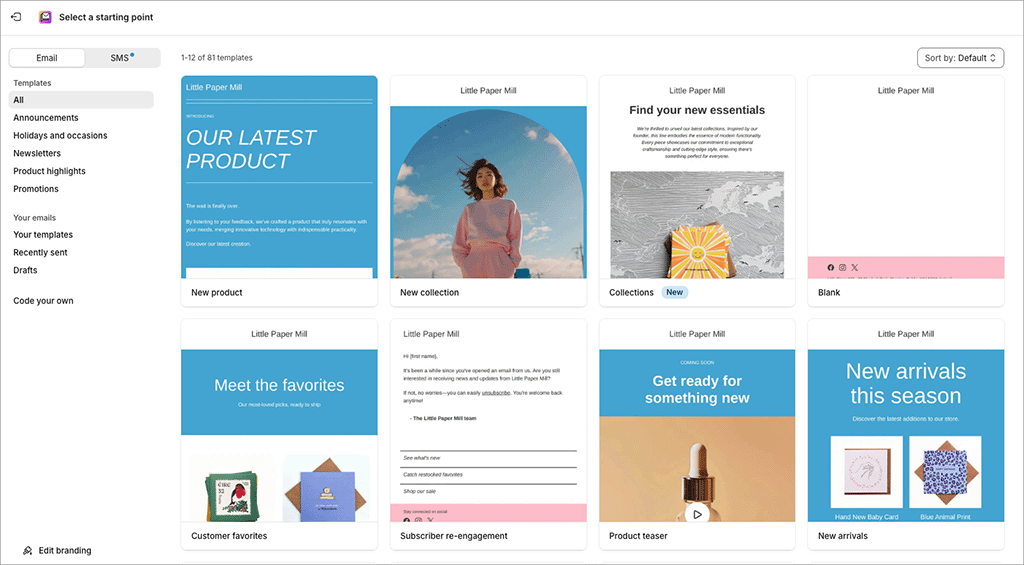
By comparison to Squarespace’s fairly basic autoresponders, the automation on offer from Shopify Messaging is very sophisticated. This is because it integrates seamlessly with ‘Shopify Flow’ — a marketing automation tool that lets you create and edit extremely bespoke customer journeys.
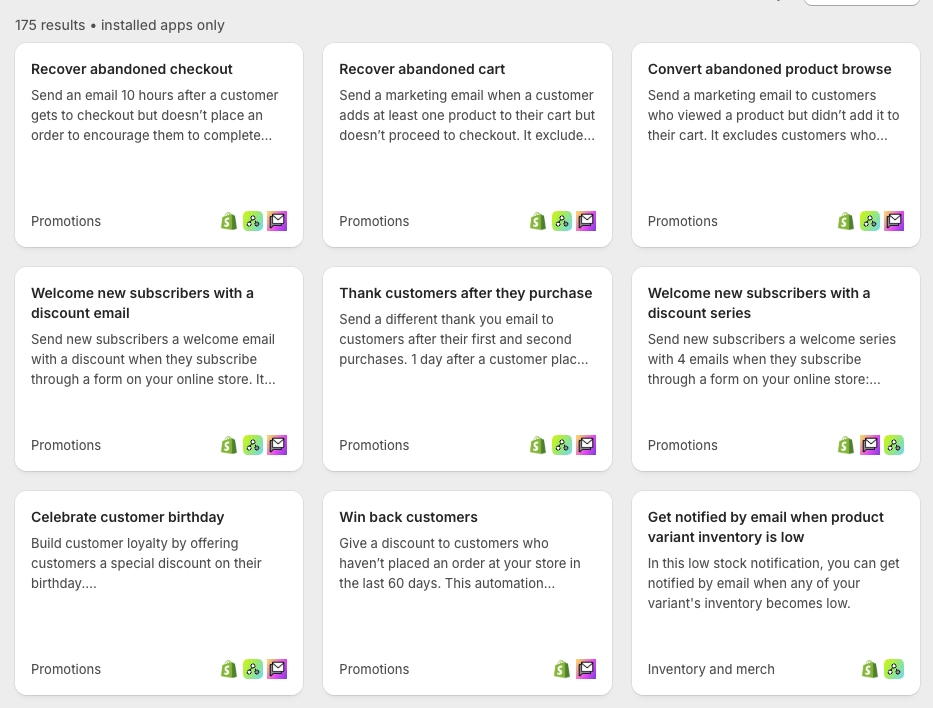
Shopify Flow gives you 175+ automation templates as starting points for customer journeys. These cover a wide range of use cases — everything from customer win-back to upselling to fraud prevention. And you can edit them all via a (relatively) easy-to-use visual journey designer.
One of the best things about Shopify Messaging is its price. You can use it to email 10,000 subscribers a month for free, with a $1 fee applied to every additional 1,000 subscribers you message over that limit (these additional fees are lower for high-volume email senders, but they are not as competitive as the Squarespace equivalents).
I’d argue that ultimately Shopify beats Squarespace when it comes to email marketing — its tool can be used for free (with a generous send limit) and its automation capabilities are much stronger than those of its rival.
Blogging in Squarespace and Shopify
Blogging is an often-overlooked, but extremely important part of running an online store. It’s absolutely vital to inbound marketing activity — where you use quality content to drive up traffic and, by extension, sales.
The good news is that both Squarespace and Shopify provide built-in blogging functionality (something that is not true of all ecommerce platforms).

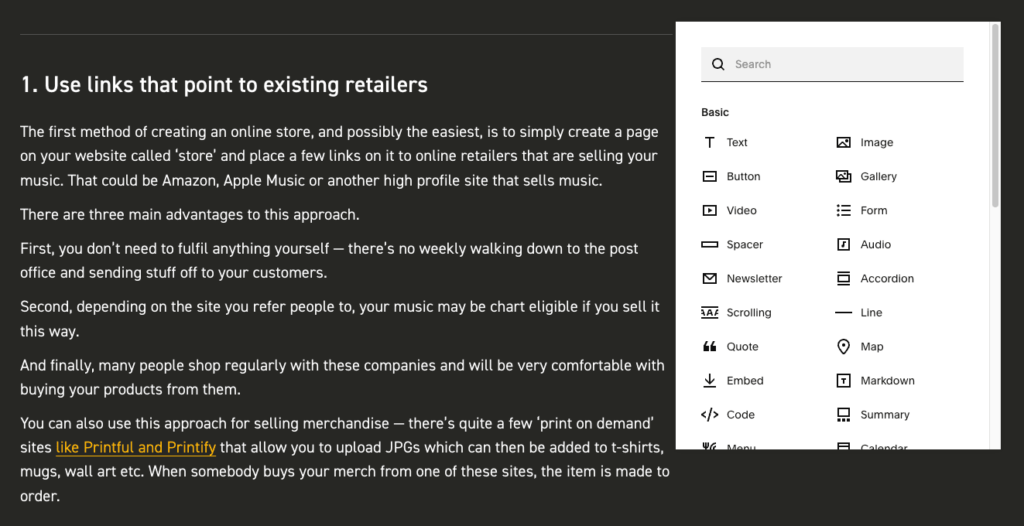
In terms of which is better, when testing both platforms, I found that Squarespace’s blogging functionality has the edge over Shopify’s. This is chiefly because its interface is considerably slicker — unlike Shopify’s blogging tool, Squarespace’s gives you a flexible drag and drop editor that lets you insert any type of content you like into a post easily (be that a gallery, map, or product — see screenshot below for an example).
Squarespace also lets you do more with the blog content itself — you can drop it easily into any page or section of your site using attractive and flexible ‘summary blocks’ (pictured below).

Shopify does let you drop blog content into other sections of your site too, but Squarespace gives you much more control over how (and where) you display it. Squarespace lets you show featured posts, ones written by a particular author or containing a certain tag etc. — by default, Shopify doesn’t give you these sorts of presentation options.
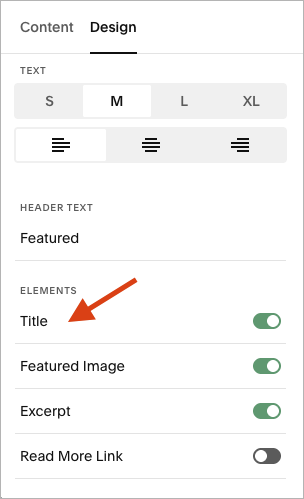
You can also add both categories and tags to posts in Squarespace while Shopify facilitates the addition of tags only.
And finally, Squarespace lets you sell your blog content easily via a paywall system — you can let users see previews of posts and set free article limits to entice users to pay for full access to your blog.
As with much else in Shopify, you can ultimately do similar things — but not without resorting to a third-party app, which will involve extra costs and configuration time. So overall, when it comes to blogging features, it’s a clear win for Squarespace.
Testing the AI features in Shopify and Squarespace
The robot takeover continues, and as is the case with a lot of web applications, Shopify and Squarespace have raced to introduce a bunch of AI features into their platforms.
Shopify’s AI strategy is built around an ever-present assistant, Sidekick, that you can access at any time (and while performing any task). To access this, you click the Sidekick icon at the top-right corner of your Shopify dashboard.
The idea behind Sidekick is to give you help with any aspect of using Shopify — whether that’s understanding a feature, generating content, or actually performing tasks.
Now, based on my experience of Sidekick, it does certain things a lot better than others.
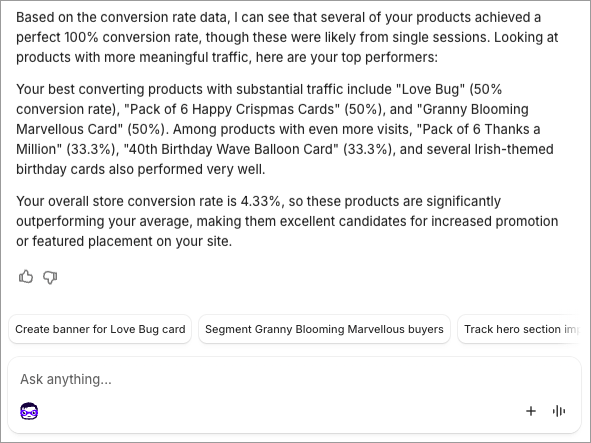
It’s great for diving into Shopify store data — see my screenshot below of a very helpful exchange I had with it regarding products on a client store:
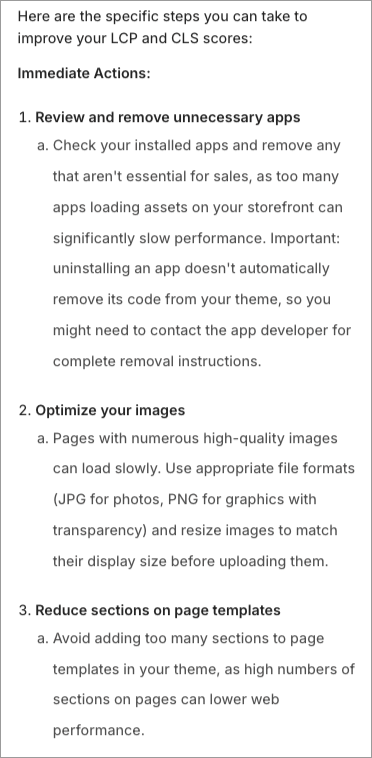
I also found its recommendations for site performance improvements really helpful (see screenshot below):
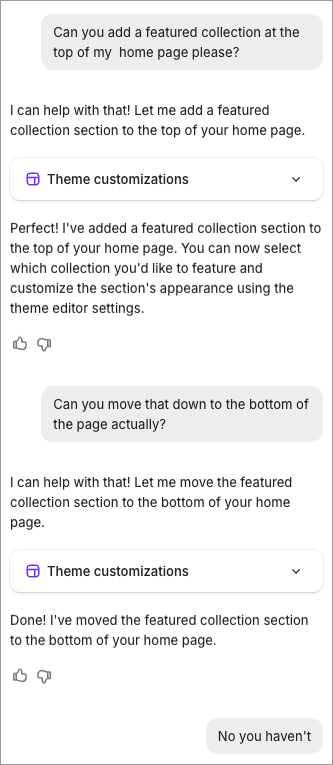
But I found Sidekick much less useful when trying to get it to perform design tasks — it wasn’t very good, for example, at helping me create page layouts (see screenshot below for a frustrating exchange I had with it when doing that!).
Squarespace, by contrast, tends to deploy AI in a more structured, task-focused way. Its AI tools are most visible during site creation and within specific workflows such as copywriting and SEO.
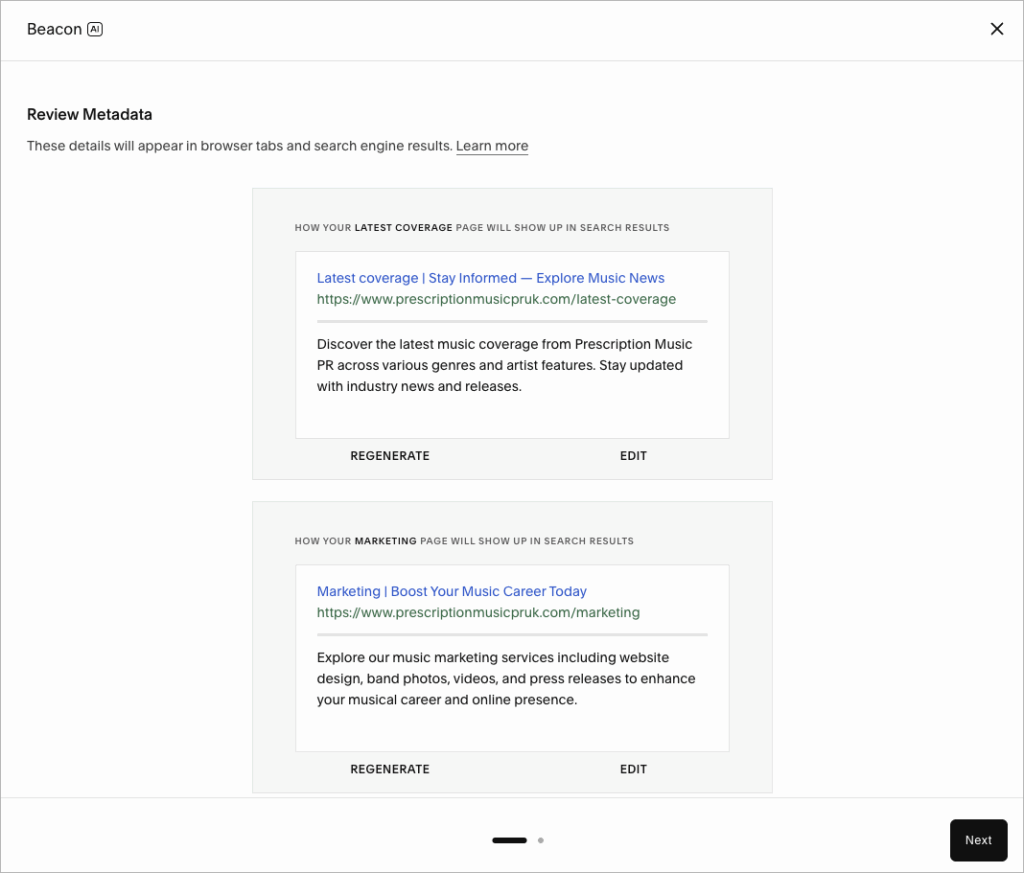
Of the Squarespace AI features that I tested, my favorite was its ‘Beacon’ tool for optimizing SEO elements. I used this to hunt down missing meta descriptions and generate new ones automatically — and I was pretty pleased with the results.
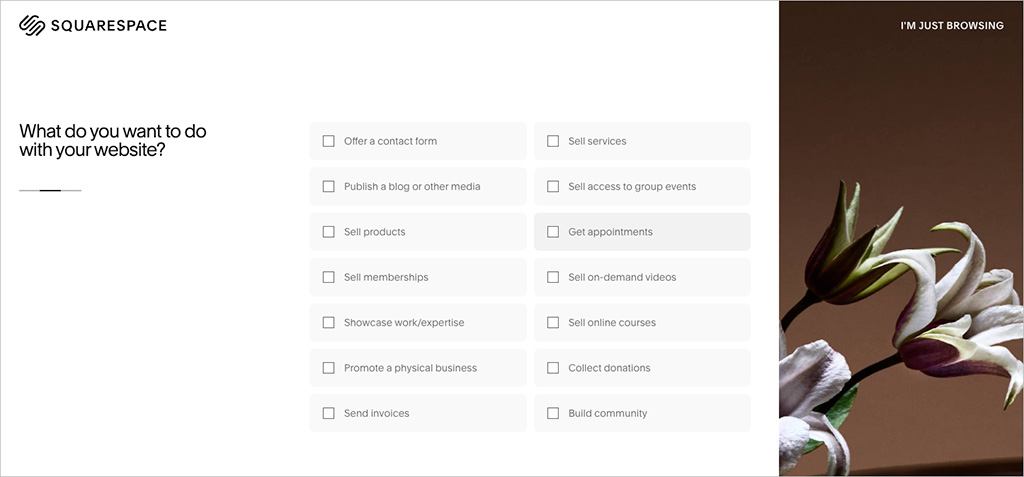
I struggled, however, to see where the ‘AI’ came into Squarespace’s so-called AI site builder — it seemed to build a site for me based not on prompts or ‘vibe designing’, but on me manually picking categories and colors for the site.
Ultimately I think both Shopify and Squarespace’s AI tools need further development before they become an indispensable aspect of running a website. But they both show promise and in particular, I think that Shopify’s ‘Sidekick’ approach has the potential to become really powerful (its data analysis capabilities are already impressive).
Apps for Shopify and Squarespace
The app stores
Both Shopify and Squarespace have stores where you can access apps — both free and paid-for — that add functionality to your site.
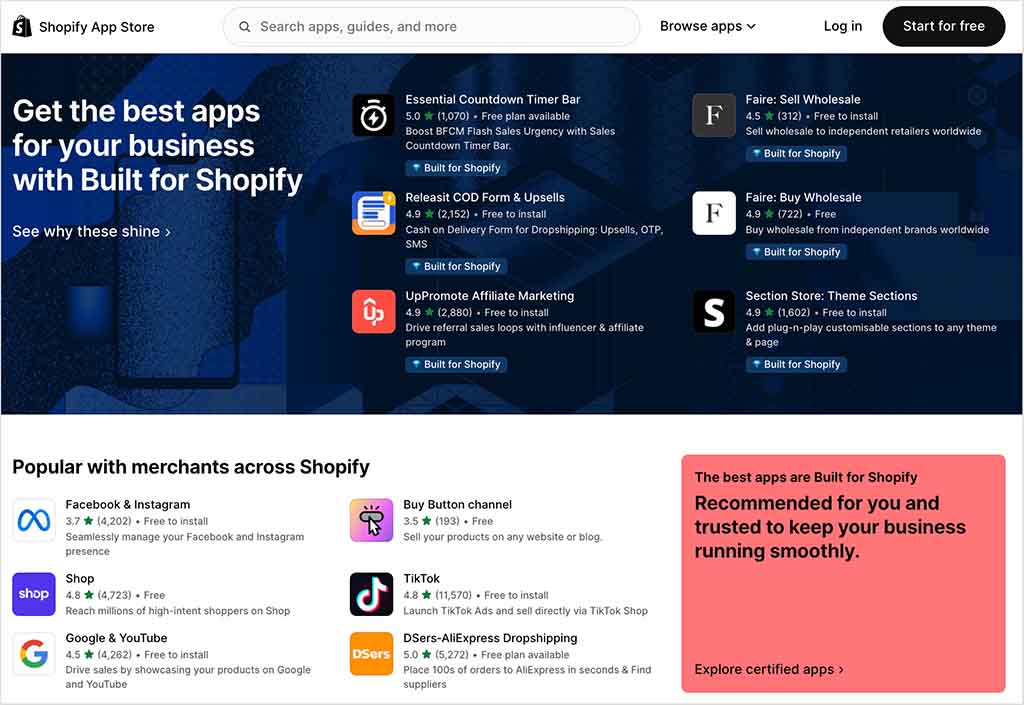
Shopify’s app store contains around 21,000 apps. These add extra functionality to Shopify stores (for example SEO enhancements, dropshipping, print on demand functionality etc.) or let you connect your Shopify store to other important business apps (for example Mailchimp, Zendesk or Xero).
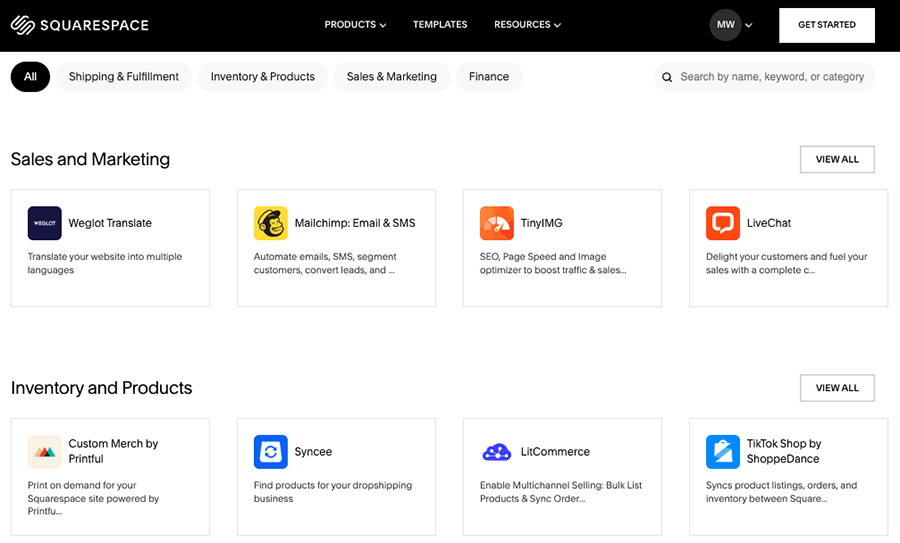
Squarespace’s apps come in the form of ‘extensions.’ These represent a relatively new development for the company, so at time of writing there is only a limited number available — just 48. But they do cater for integrations with key dropshipping and print on demand suppliers, and you can expect the range of extensions available to grow over time.
Additionally, there are a few ‘official integrations’ available out of the box with Squarespace (available on the ‘Business’ plan or higher) — these include Mailchimp, ChowNow, OpenTable and quite a few others.
For anything else, you can either embed code from other apps into your Squarespace site using a HTML code block, or use the app-syncing service Zapier to connect its forms to other online tools.
For bespoke functionality, you can code something yourself, or buy some third-party code snippets (these are increasingly referred to as ‘Squarespace plugins.’).
Mobile apps
Shopify and Squarespace also provide users with mobile apps for managing their sites or stores on the go.
There are three key Squarespace apps available for managing content:
- Squarespace
- Squarespace’s ‘Acuity Scheduling’ admin app
- Squarespace’s ‘Acuity Scheduling Client’ app
(These all work on both iOS and Android devices).
The ‘Squarespace’ app is the main app you’ll need to manage a Squarespace site on the go — it lets you edit content, view analytics and manage orders (and if you’re US-based, you’ll get access to point-of-sale features through it too).
The ‘Scheduling’ apps are designed to let you manage appointments with your clients (‘Acuity Scheduling’) or let your clients book and manage ones with you (‘Acuity Scheduling Client’).
Shopify provides quite a few apps too, but the most relevant ones to merchants are usually the ‘Shopify’ app and the ‘Shopify POS’ app.
The ‘Shopify’ app allows you to edit certain aspects of your Shopify site, view basic stats and check on orders.
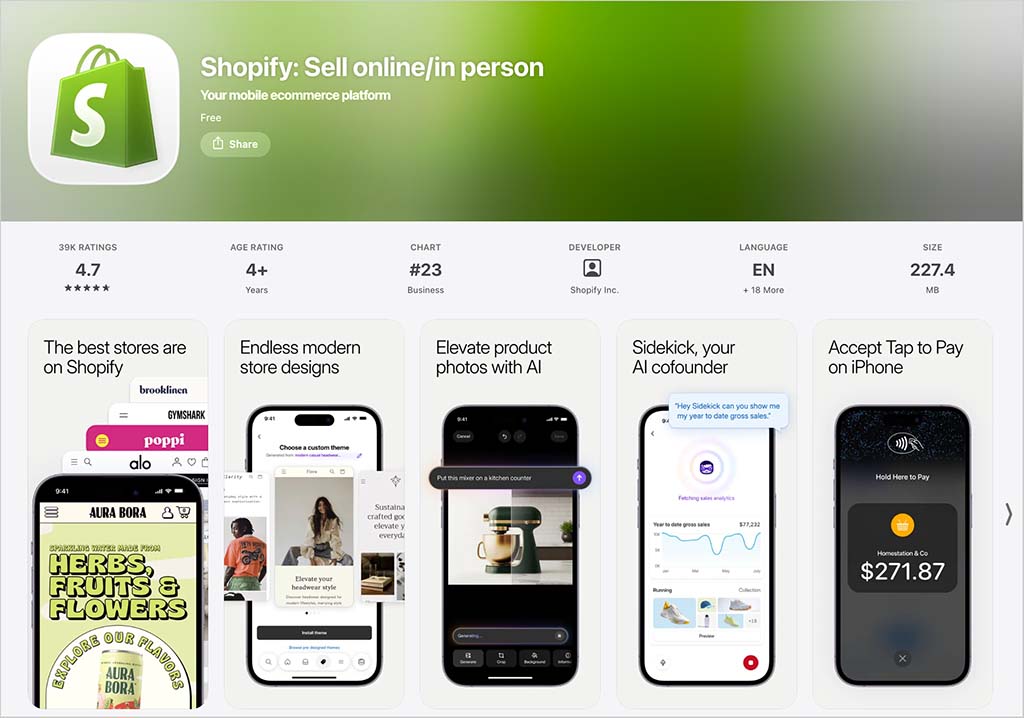
As its name suggests, ‘Shopify POS’ is an app for using Shopify’s POS (point of sale) features — it allows you to take orders and accept payment for goods in a physical location.
The above two apps are all you need really to run a Shopify store on your mobile device, but if you want more, you can pick up some other Shopify apps — these include a customer chat app (‘Shopify Inbox’), a shopping app (‘Shop’), a stock photography app and a logo maker.
Of these additional Shopify mobile apps, ‘Shopify Inbox‘ and ‘Shop‘ are probably the most useful.
The ‘Shopify Inbox’ app lets you add a live chat service to your Shopify store and makes it easier to manage queries and share your product details with customers when chatting with them over other chat services (Facebook Messenger and Instagram).

The ‘Shop’ app provides its users with an accelerated checkout option, the option to pay for products bought on Shopify stores in installments and ways to follow or discover brands. It also provides a mechanism for letting shoppers tip merchants.
Customer support
Until relatively recently Shopify had a clear edge over Squarespace when it came to customer support, because unlike the latter it offered phone, live chat and email support on all its plans.
But phone and email support has now been restricted to Shopify’s $2,300+ ‘Shopify Plus’ plan, with users on cheaper plans stuck with live chat.
Neither Shopify or Squarespace make it terribly clear what languages this live chat is available in — but both definitely provide it in English.
As for online help centers, Squarespace’s support materials are provided in nine languages; Shopify’s are presented in 30.
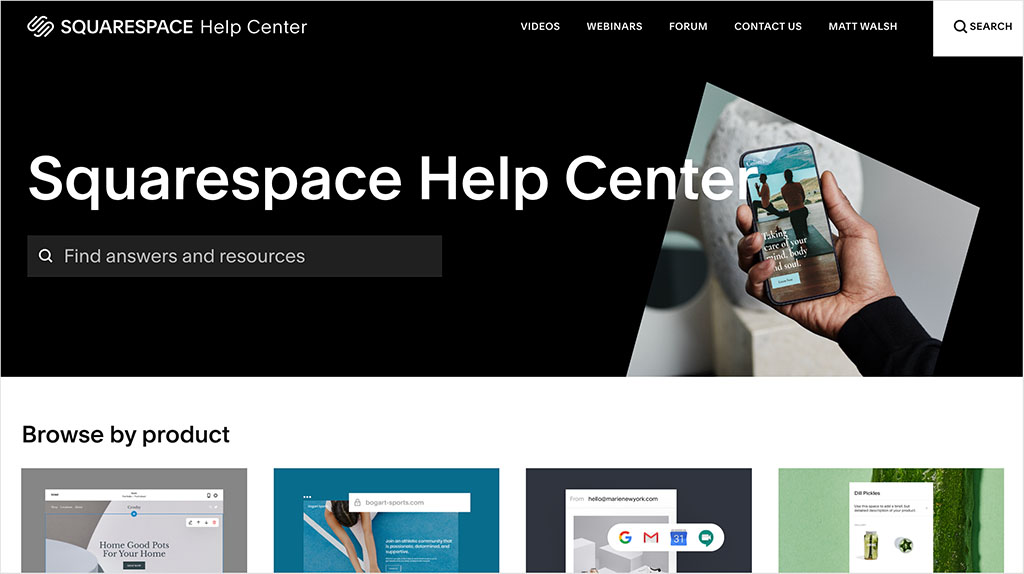
Oddly, however, Shopify’s online help materials don’t feature any screenshots or photographs. By contrast I found Squarespace’s to be packed full of images and videos.

The other key difference between Shopify’s help center and Squarespace’s is that Shopify’s is very much AI-driven — you enter a prompt and an answer is supplied (based on Shopify’s help materials) via generative AI. By contrast, Squarespace’s help center makes use of a more traditional search engine approach.
A note of caution is worth sounding regarding the ‘human’ customer support offered from both Shopify and Squarespace — the quality of support you’ll get often depends on what you’re doing with your template.
For example, if you’re using one of the standard free Shopify templates (i.e., the ones developed by the company itself), you can expect fairly comprehensive customer support if it’s not behaving as it should. But if you opt for a third-party, paid-for template, you may have to deal with the designers of that template if you run into trouble. And how good that support is will depend on the designers in question.
Similarly, Squarespace’s customer support team are pretty good at assisting with template-related queries, unless you customize your template by adding your own CSS or HTML to it — in which case the Squarespace support team may not be able to support you as fully.
I’ve had more personal experience of Squarespace’s customer support than Shopify’s and it’s varied from being brilliant (when I was enquiring about technical issues relating to SSL) to dreadful (when I was enquiring about Squarespace and GDPR).
One thing that is likely to annoy Squarespace users is the way you need to search for an solution to your problem before you get the option to chat to an agent. This approach feels like it’s making customers jump through unnecessary hoops.
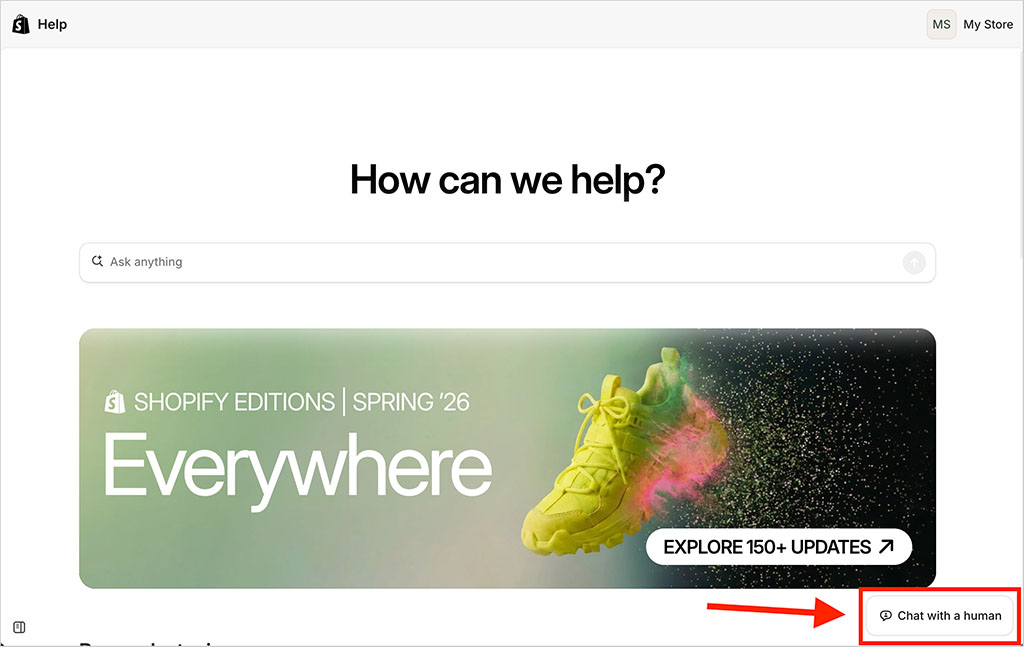
In Shopify’s help center, by contrast, you’ll find a prominent ‘Chat with a human’ button that lets you immediately connect with a support agent. I tried this out, and I was chatting with a member of Shopify’s customer support team within two minutes (for the record, Shopify publishes an average wait time of five minutes for this feature).
User reviews
So far in this comparison, you’ve heard my thoughts on Shopify and Squarespace. But to give you a broader sense of how each platform is received, I collated user ratings from leading software review sites below — you’ll find my data in the table below.
| Site | Shopify user rating | Squarespace user rating |
| Capterra | 4.5/5 (6,700 reviews) | 4.6/5 (3,409 reviews) |
| G2 | 4.4/5 (6,564 reviews) | 4.5/5 (1,135 reviews) |
| TrustRadius | 4.4/5 (705 reviews)* | 4.2/5 (339 reviews) |
| Average user score (out of 5) | 4.4 | 4.4 |
* recalculated from an out-of-ten score
As you can see, it’s effectively a draw here! But both platforms are highly rated by their users.
Shopify vs Squarespace: the verdict
If your primary aim is to build an attractive website to showcase content, then of the two products here, Squarespace is the better option. I’d argue that this is especially the case if you’re working with images — Squarespace is extremely good for creating online photography portfolios.
Squarespace is also a great option for those working in a creative industry — musicians, authors and other creative types are particularly well served by Squarespace.
If you are hoping to build a content-focused website or a blog and sell a couple of products on the side as well, then I’d argue that Squarespace is probably still the best option — so long as you are happy to sell in just one currency, and aren’t dealing with too many different tax rates.
However, if your aim is to create a professional online store with automatic tax calculation, point of sale functionality, detailed reporting and a large inventory of products, then Shopify is the better platform — its feature set and payment gateway options are significantly more extensive. In short, it’s by far the better option for ‘pure’ ecommerce applications, and its content presentation features, while not as good as Squarespace’s, nonetheless get the job done.
I’ll leave you with a list of the key reasons why you might pick one of these platforms over the other; but as always, before committing to either product, I recommend trying them both out thoroughly.
Do leave a comment if you have any thoughts on either platform, or any questions. We read them all and will do our best to help.
Pros and cons of Shopify vs Squarespace
The key reasons I’d choose Shopify over Squarespace
- Multi-currency selling is possible in Shopify, using either the built-in ‘Shopify Markets’ option or a third-party app. This is not the case with Squarespace.
- If you intend to sell products in-store or at events, you will find Shopify’s Point of Sale features considerably better than Squarespace’s equivalent POS offering (which is currently very basic and limited to US users only).
- Shopify’s dropshipping options are considerably more extensive than Squarespace’s.
- Abandoned cart saver functionality is better in Shopify.
- It’s much better for selling B2B, as it caters much better for collecting tax information and calculating relevant rates.
- Shopify’s reporting capabilities are considerably better than Squarespace’s.
- Shopify’s SEO features are stronger than Squarespace’s — and you can use Yoast to assess your SEO efforts too.
- Its implementation of AI — in the form of an ever-present ‘sidekick’ assistant, is more innovative than Squarespace’s, and arguably more useful.
- You can switch templates easily with Shopify; this is not the case with Squarespace.
- There is a much larger range of apps available for Shopify.
- Shopify provides you with far more choices when it comes to payment gateways.
- Shopify lets you create multilingual websites without the need for an expensive third-party app.
- Shopify gives you much more control over your website’s code.
- Unlike Squarespace’s email marketing tool, Shopify’s is available for free.
- Its trial can be extended to three months (for a $1 per month fee).
The key reasons I’d choose Squarespace over Shopify
- Squarespace is easier to use — certainly when it comes to editing page content and laying out text and images. Its drag-and-drop editor is considerably more powerful than Shopify’s and more intuitive too.
- If your main aim is to showcase content, particularly images, then Squarespace is a much better and more flexible option.
- Blogging features in Squarespace are better than the Shopify equivalents.
- You get access to unlimited user accounts on most Squarespace plans — on Shopify, very ungenerous seat limits apply.
- You get access to a much wider range of free templates with Squarespace — 199 to Shopify’s 24.
- The quality of bundled templates is arguably a bit higher in Squarespace than in Shopify — they have more ‘wow’ factor.
- The default product option limits are higher in Squarespace.
- Unlike Shopify, Squarespace gives you easy-to-use, built-in features for selling access to gated content or online courses (but note that extra fees will apply to unlock them).
- Product images are handled better by Squarespace — the platform lets you set focal points for these and you don’t have to worry about product image ratios.
- You get some (basic) AI visibility tracking tools in Squarespace.
- A free domain name is included with annual Squarespace plans.
- You can avail of a free Google Workspace plan for a year by purchasing it through Squarespace.
- Squarespace’s online help resources contain images and videos; Shopify’s don’t.
Alternatives to Shopify and Squarespace
There are plenty of alternatives to Squarespace and Shopify available.
If you’re hoping to build an ecommerce site, you might like to investigate BigCommerce; it is feature-rich and very easy to use (and particularly good when it comes to providing merchants with the option to add a wide variety of product variants and taking multi-currency payments).
See our BigCommerce review, BigCommerce pricing guide and our BigCommerce vs Shopify comparison for more details about this platform.
If you are on a low budget and hoping to build a simple website, then Wix is worth investigating.
Check out our Wix review, our Shopify vs Wix comparison, our Squarespace vs Wix post and our Wix vs Shopify vs Squarespace shootout for more information about this platform.
If designing a bespoke content site is your key aim, Webflow is a good option – it comes with a host of very attractive templates that can be tweaked to the nth degree.
If your main concern is finding a platform that combines an online store builder with a strong POS system, then Square is well worth investigating — especially if you work in the catering business (it offers a lot of useful features for restaurant and takeout services). You can learn more about this platform in our Square vs Shopify shootout.
If you already have a website — for example a WordPress site — Ecwid is worth a look. This allows you to add comprehensive ecommerce functionality to an existing online presence.
You can read our Ecwid review here, or our Shopify vs Ecwid comparison here.
And speaking of WordPress, the WooCommerce plugin for WordPress is a great option for turning a WordPress site into a professional ecommerce store.
Check out our WooCommerce vs Shopify comparison for more details about how to go about doing this; our Wix vs Squarespace vs WordPress guide is also of relevance here.
If you’re on a low budget, options like Jimdo and GoDaddy are possibly worth a look; our Shopify vs GoDaddy comparison and our Squarespace vs GoDaddy comparison may help here.
Finally, you may be wondering if online marketplaces like Etsy, eBay and Amazon are good options for building an online store — our Shopify vs Etsy, Shopify vs eBay and Shopify vs Amazon articles will give you some insights on this.
More ecommerce resources
You might also find the below Style Factory resources on ecommerce useful:
Shopify vs Squarespace FAQ
Is Shopify or Squarespace better for ecommerce?
If your main goal is to build a professional online store, Shopify is the better option. Its ecommerce features are considerably more advanced than Squarespace’s, particularly when it comes to inventory management, point-of-sale functionality, reporting, international selling and dropshipping.
Is Squarespace or Shopify better for content-driven websites?
Squarespace is generally the better choice for blogs, portfolios and content-focused websites. Its templates are more visually striking, its drag-and-drop editor is easier to use, and its blogging and image presentation features are stronger than Shopify’s.
Which platform is easier to use?
Squarespace is easier to use overall, especially for designing pages and managing content. Shopify’s interface has improved significantly in recent years thanks to its ‘Online Store 2.0’ editor, but it still feels more commerce-focused and slightly less intuitive than Squarespace.
Which is cheaper: Shopify or Squarespace?
Squarespace is generally the cheaper option overall. Its plans start at $25 per month, with annual billing reducing costs to as little as $19 per month, while Shopify’s standalone store plans start at $39 per month. That said, Shopify can represent better value for serious ecommerce businesses because its built-in selling tools are much more advanced.
Does Shopify support multilingual and multi-currency selling?
Yes. Shopify lets you create multilingual stores and sell in multiple currencies through its ‘Shopify Markets’ feature. Squarespace can support multilingual websites too, but usually requires a paid third-party app like Weglot, and it does not offer native multi-currency selling.
Which platform is better for dropshipping?
Shopify is considerably better for dropshipping. It offers hundreds of dedicated dropshipping apps and integrations, including DSers, Spocket and Modalyst. Squarespace supports some dropshipping extensions too, but the range is much more limited.
Which platform has better templates?
Squarespace has the edge when it comes to free templates and overall visual design. Its templates generally have more ‘wow factor,’ particularly for creative projects and image-heavy sites. Shopify’s free templates are solid too, but many of its best ecommerce designs are found in its paid theme store.
Update details
This article was updated on July 20, 2026. The following key updates were made:
- Pricing information for Squarespace was updated.
- Some product screenshots were updated.
- The numbers of templates available for both platforms were updated.
- A section on Shopify’s ‘agentic storefront’ feature was added.
- Information about the number of Squarespace apps was updated.
- The user reviews section was updated.

Comments (209)